Tools for Information Literacy ⑯ Professional presentations
Design your presentation to flow smoothly during delivery
Use visual cues to help the viewer and the presenter

Help your viewers follow your presentation with on-screen mapping,
and let that mapping help you control the presentation as you are giving it.
Navigation
It is wise to figure some way for you to display to your viewers where they are in the presentation, so they can have a visual orientation. You can create that ability at the same time as you create a way for you to control the flow of slides on the screen without having to leave the full screen view.
Transition between slides
If you want to have effects introduce the slide, reveal the Slide Transition tool from the animations ribbon.
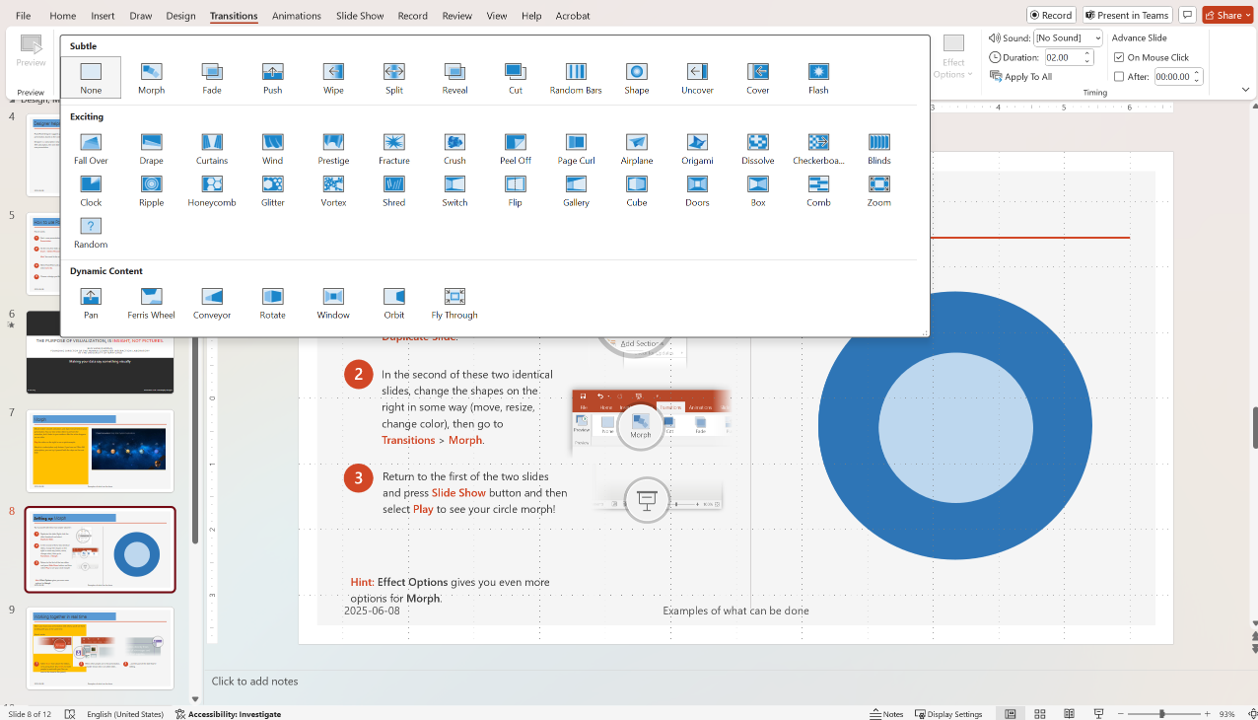
- using the shift key or the control key, as appropriate, along with the mouse, select the slides that you wish to display transition effects
- use the transition tool to apply, to a single slide, a group of slides, or all the slides
- you can select the type of transition effect, the speed of the effect, sounds to accompany transition, and whether the transition effect happens automatically or upon your action
Animation of objects on slides
You may also choose to animate specific objects on individual slides so that they appear with effects you select. In the Animation ribbon, use Custom Animation to reveal the dialog box.
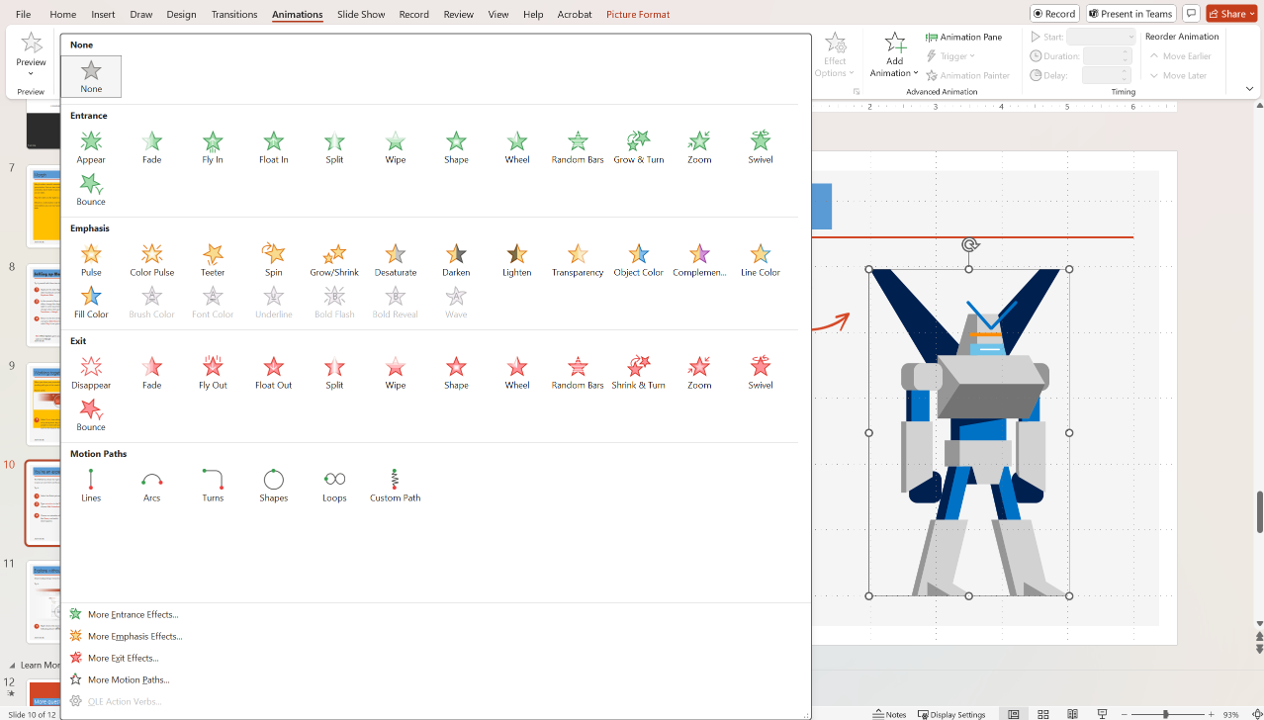
- using this box, you can decide which objects to animate, the order and timing that the animation will take effect, and the visual and audio effects that apply to each object
- you can also use this dialog box to preview what an animation will look like
- here is where you decide how to reveal text on your slides
- if you wish to have objects appear simultaneously, you will have to group them using your drawing toolbar so that the custom animation can animate the grouping, rather than the individual components
Hiding slides (and why)
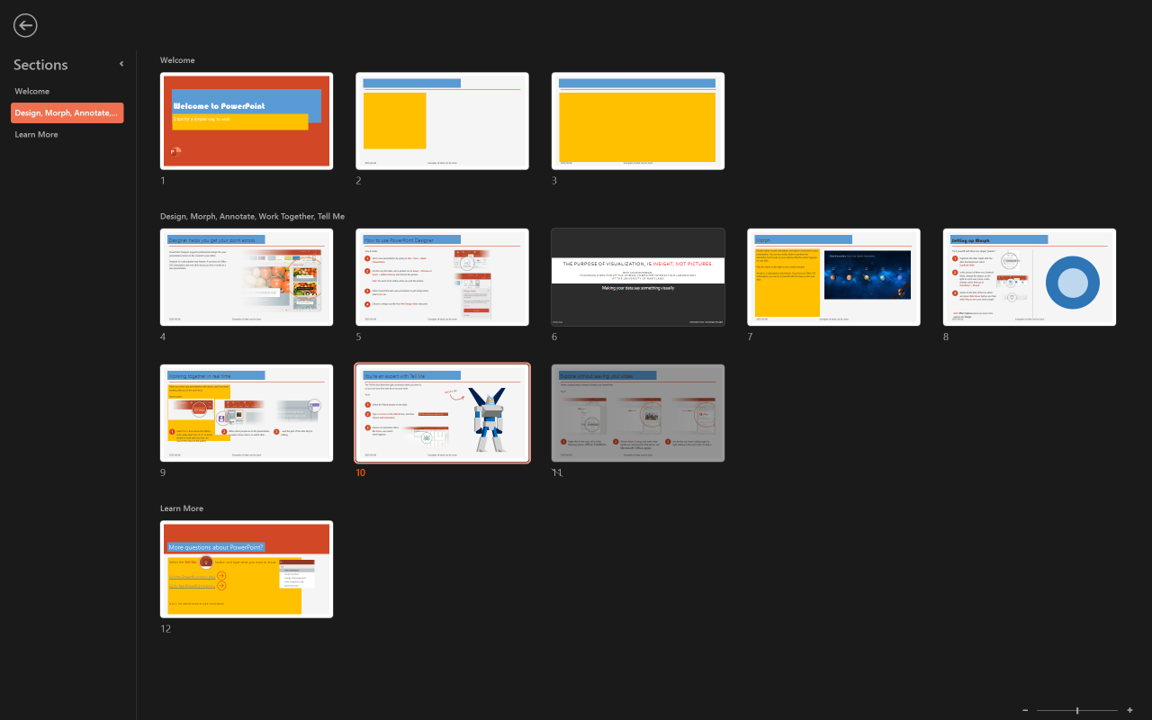
To incorporate a slide in your presentation, but hide it so that it does not show unless you decide to show it, go to Slide Sorter view, select the slide to be hidden and press the hide slide button.
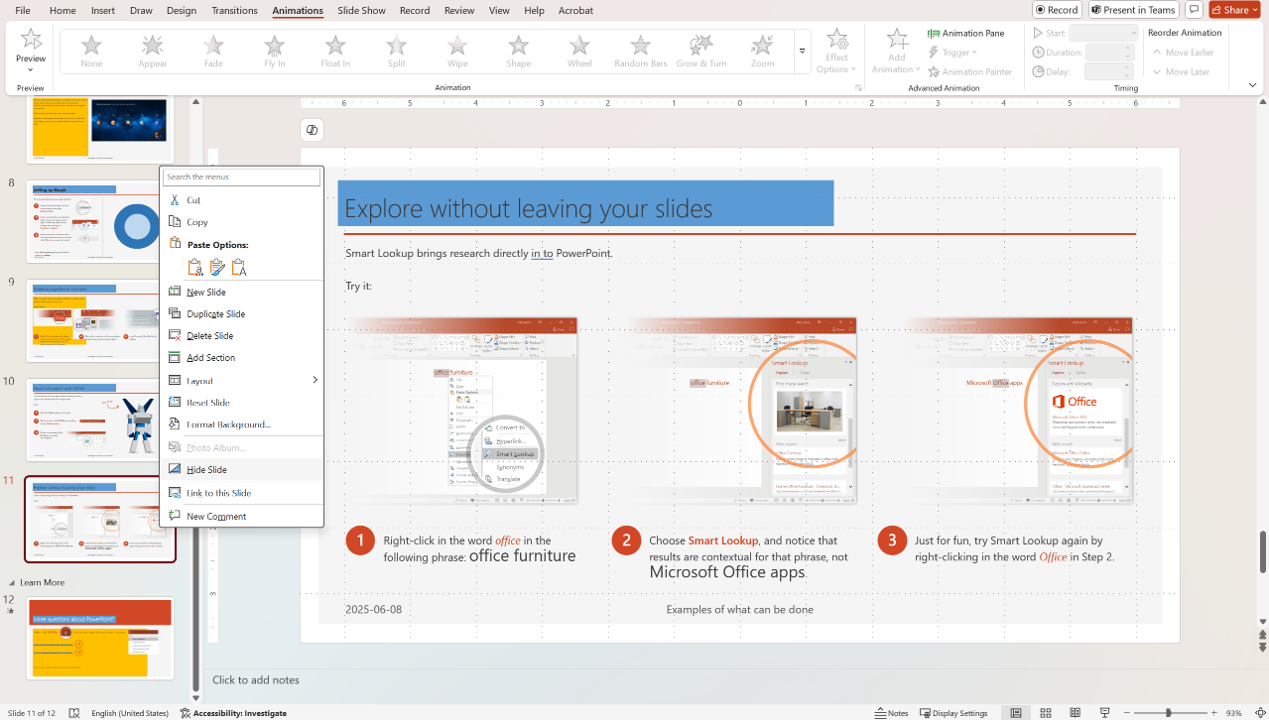
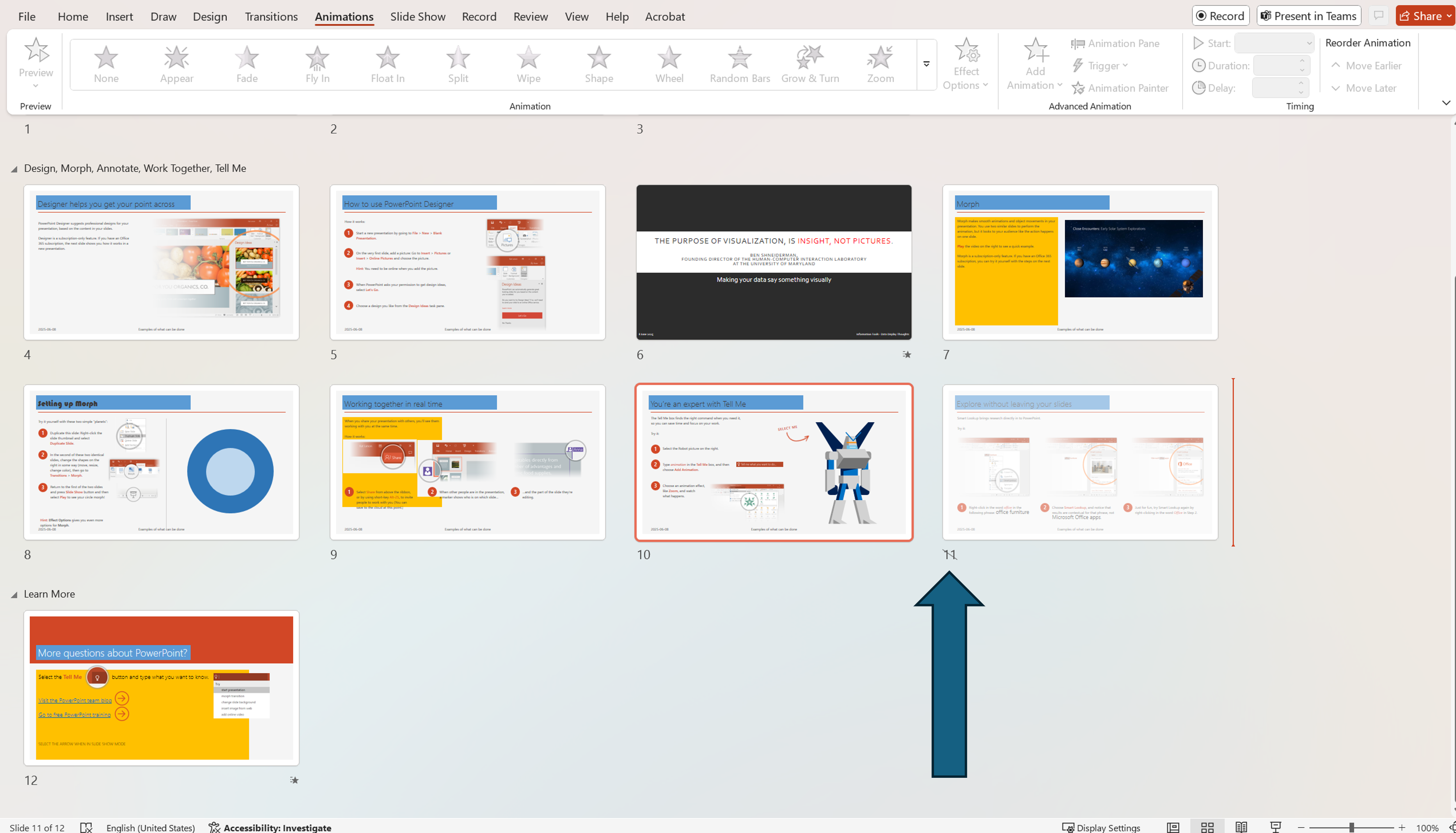
- the slide will have its number crossed out in the Slide Sorter view and will not display in the Slide Show view
- if you wish to display a hidden slide in Slide Show view, right click on any slide and a dialog box will appear
- with this dialog box, you can Go to the slide of your choice
- the slide you are on will be highlighted and any hidden slides will be identified by being greyed out and having their sequential numbers crossed through
- you can then select the hidden slide with your mouse and go directly to it
Linking slides (and why you might want to)
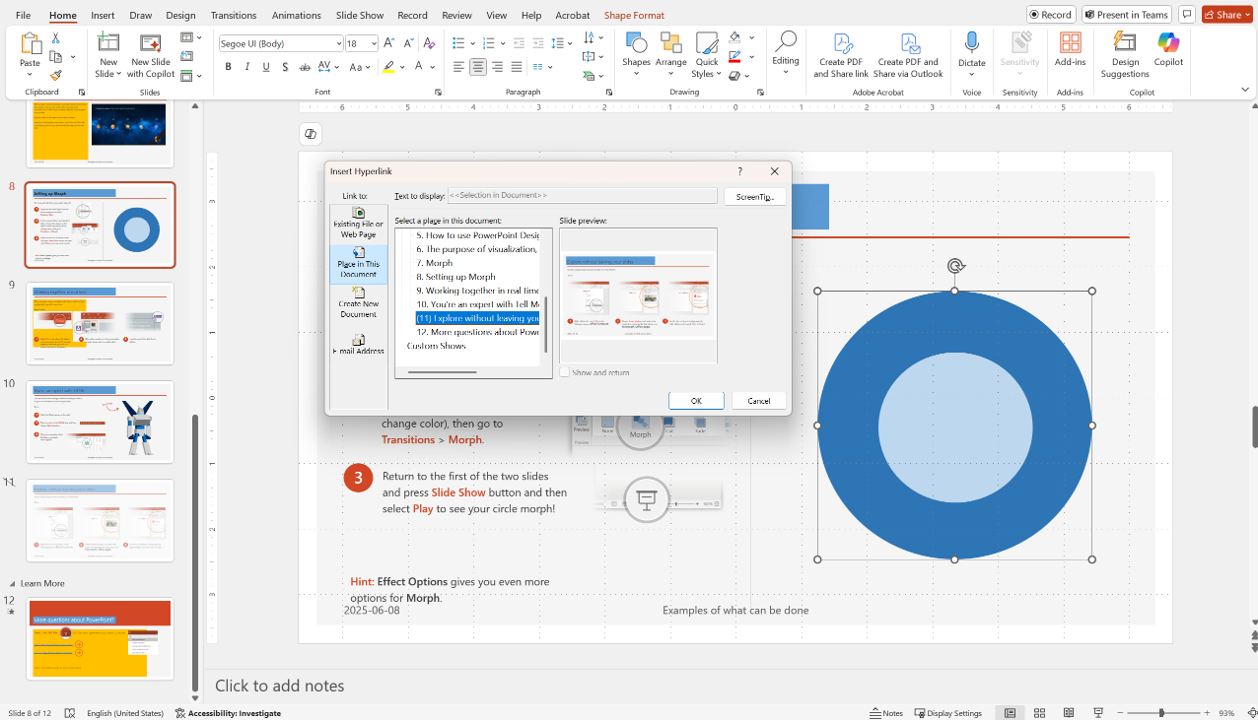
in Normal or Slide view, select an object (which may also be text) that you wish to attach a hyperlink to, then right click to bring up a dialog box which will allow you to select the object, either in the slide show, in a file, or on the web, that you wish to link to.