Tools for Information Literacy ① Virtual Private Network tool
Task 01a - install a VPN
Be able to fully engage in client-server relationships on the UNC network by installing a VPN connection
Off-campus access to the UNC networks requires the use of a Virtual Private Network (VPN).
A Virtual Private Network (VPN) provides an encrypted connection (secure tunnel) from off campus to the UNC-Chapel Hill internal network. VPN allows you to access campus applications and work securely, just as if you were physically on campus. Access to some campus applications from off campus require the use of VPN such as, UNC's Virtual Lab, and ConnectCarolina.
Install a VPN
Go to ITS's VPN installation page, determine your client's operating system, and then download and install the Cisco AnyConnect VPN Client that is appropriate for your laptop, tablet, and/or phone.
Once installed, it will display several dialog boxes that you will use to connect to UNC networks vis the VPN.
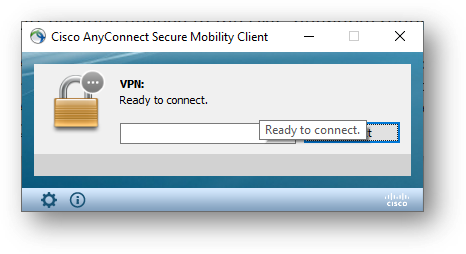
You need to connect to vpn.unc.edu
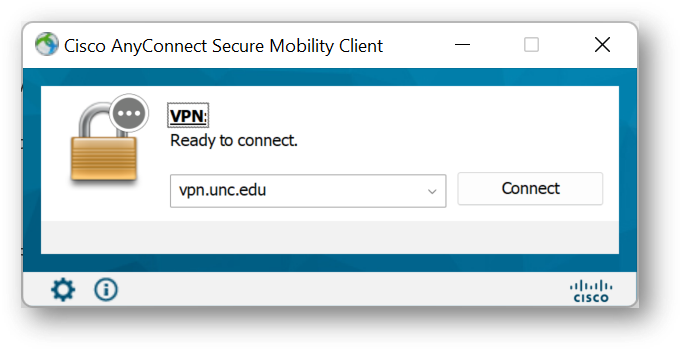
Once there you need to sign in to UNCCampus using your ONYEN and your ONYEN credentials, plus your two-factor authentication.
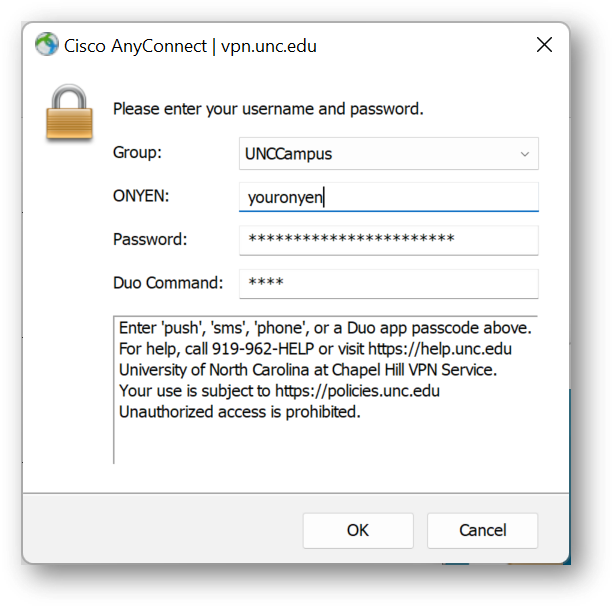
Ensure that you sign in to the group named UNCCampus.
When you have successfully installed it on your device, put a screenshot of the installation in your Canvas task 01a assignments space to let us know that you have it.