Tools for Information Literacy ① Conventions
Conventions in use for INLS161-001
To ensure all our work will be findable, we will follow these basic conventions in this class this semester.
Whether Mac or Windows, prepare your client for this class.
Tips for Organizing Computer FilesIt doesn't matter where you choose to save and store your work on your client, but it does matter that you decide on a consistent location and a consistent naming convention, so you will be able easily to find your materials.
- Let's start by making a decision - do you want to store all work relating to INLS161-001 on your desktop, or in your documents folder? This is your choice, but remain consistent with it.
- desktop or documents∕
- Then, subordinate to (or, within) the desktop or documents folder, create a new sub-folder for this semester. Use this naming convention so your stored materials will automatically be stored chronologically.
- desktop or documents∕
- 2025-6fall∕
- Then, subordinate (or, within) the 2025-6fall folder, create a new sub-folder for this class.
- desktop or documents∕
- 2025-6fall∕
- INLS161-001∕
- 2025-6fall∕
- Then, subordinate (or, within) the INLS161-001 folder, create five new sub-folders, one each for each of the class tasks that will require submissions.
- desktop or documents∕
- 2025-6fall∕
- INLS161-001∕
- task01∕
- task02∕
- task03∕
- task04∕
- task05∕
- INLS161-001∕
- 2025-6fall∕
Store your work in these locations, so you will know where to find your work when it comes time to store and submit it.
You may choose to use this location for other classes as well.
- desktop or documents∕
- 2025-6fall∕
- INLS161-001∕
- task01∕
- task02∕
- task03∕
- task04∕
- task05∕
- INLS201-001∕
- PSYC230-001∕
- INLS161-001∕
- 2025-6fall∕
Once you have your files set up on your client, you may wish to synch them with a duplicate copy on your UNC OneDrive space. Doing so will give you access to your files even if you need to access them from a computer other than your laptop.
Set up our clients to always show file extensions.
What Is a File Extension?A file extension, sometimes called a file suffix or a filename extension, is the character or group of characters after the period that makes up an entire file name.
By default, most Mac and Windows laptops are set up to hide file name extensions by default.
We want to show them by default.
Every file name must end in a dot followed by a file extension to specify which program on your computer the file is associated with.
An example might be this-is-a-text-document.txt
Setting up your client to show file extensions
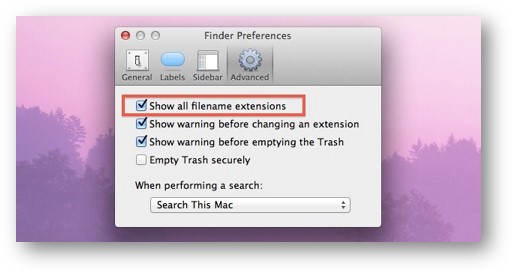
On a Mac, filename extensions are usually hidden in macOS, but you can change that.
- In the Finder on your Mac, choose Finder > Settings, then click Advanced.
- Select or deselect “Show all filename extensions.”
- All extensions are shown, even for files that have “Hide extension” selected
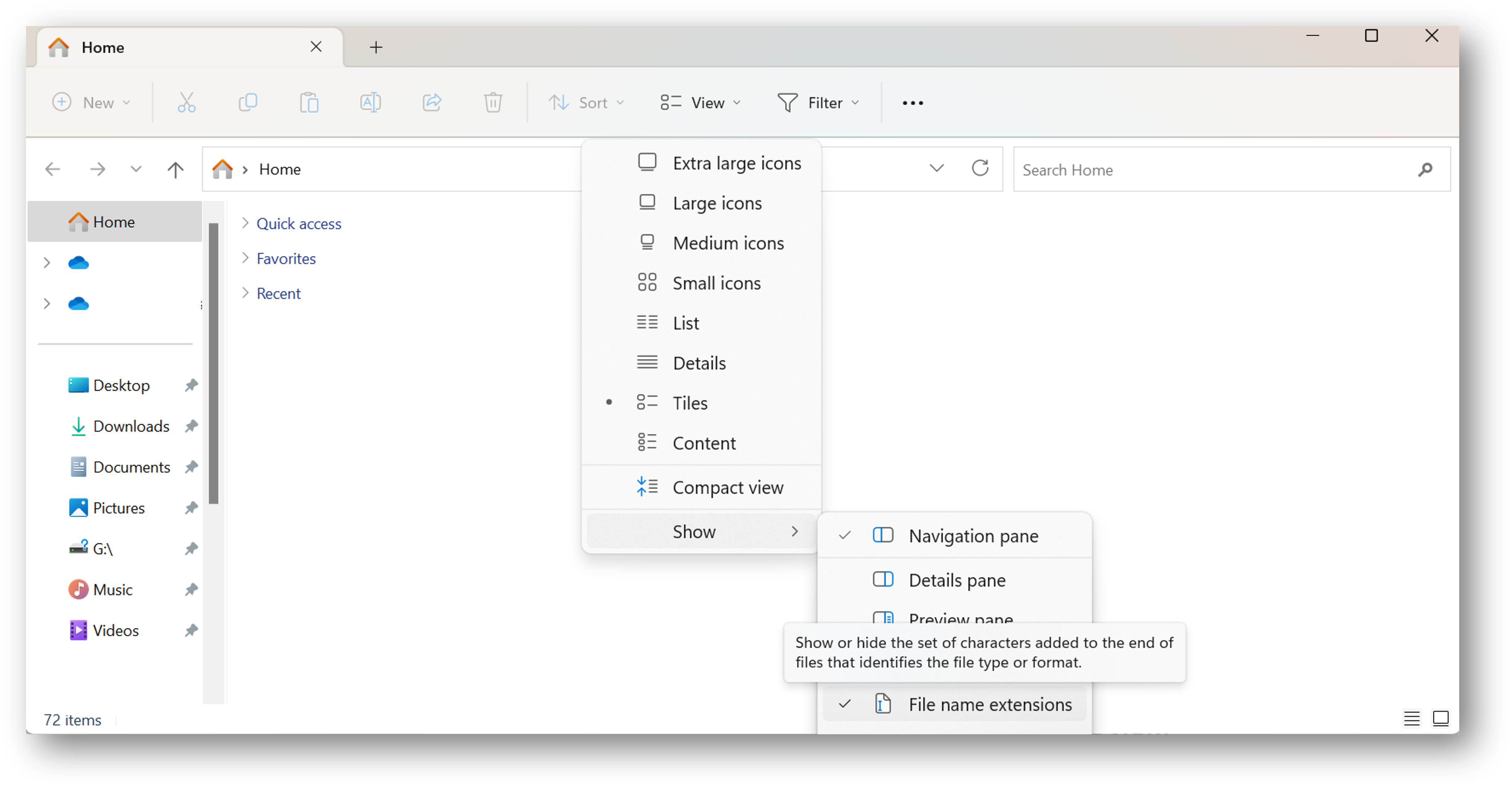
In Windows, filename extensions are also usually hidden, but you can also change that.
- Open the File Explorer
- Click on View from the top
- Now click on Show
- Then select File name extension
- Select or deselect “Show all filename extensions”