| Step 1 |
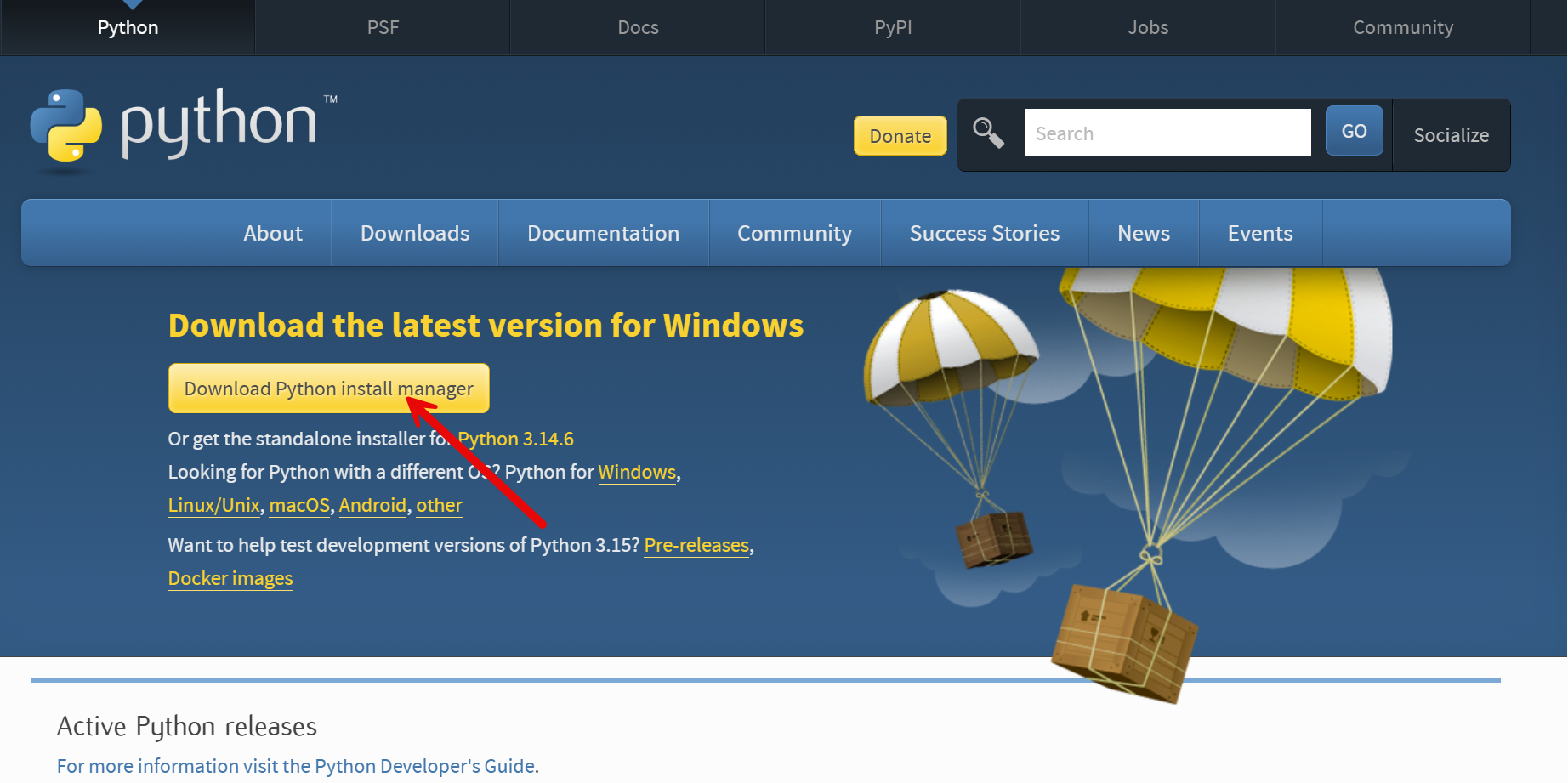
Visit the Python website (https://www.python.org/downloads/) and click the download button as shown in the screenshot. The Python community releases frequent updates. Don't worry if the version numbers are newer than the ones in the screenshot below. You should download and install whatever release is linked to the download button.
|
| Step 2 |
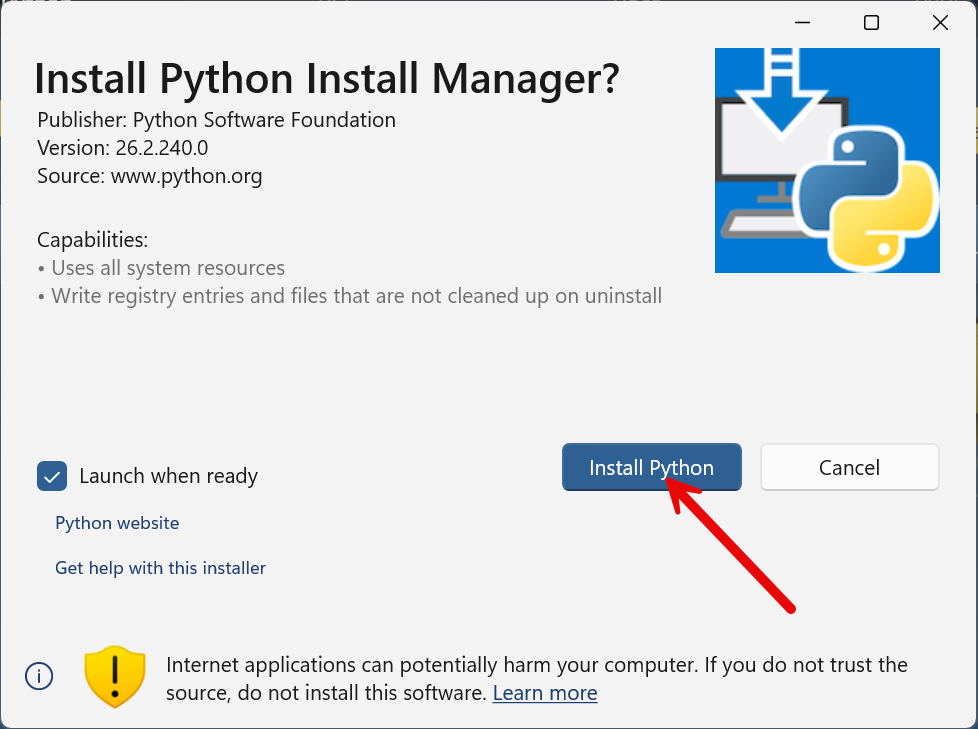
Find the file that you just downloaded and run it. This should open the Python Install Manager installer as shown below. Click the "Install Python" button to start the installation process.
|
| Step 3 |
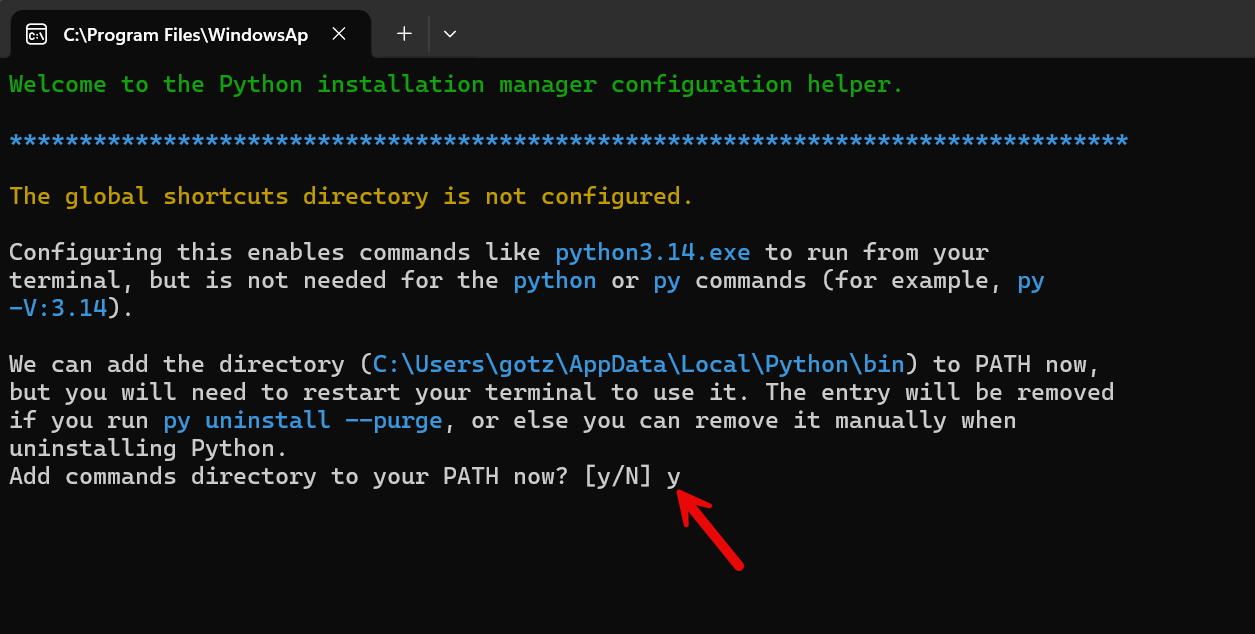
A terminal window will appear during the installation process which will ask you a few questions along the way. First, you'll be asked if you want to "Add commands directory to your PATH now?". While not essential, it's best to say yes to this question. Type the letter y and then press enter to continue the installation process.
|
| Step 4 |
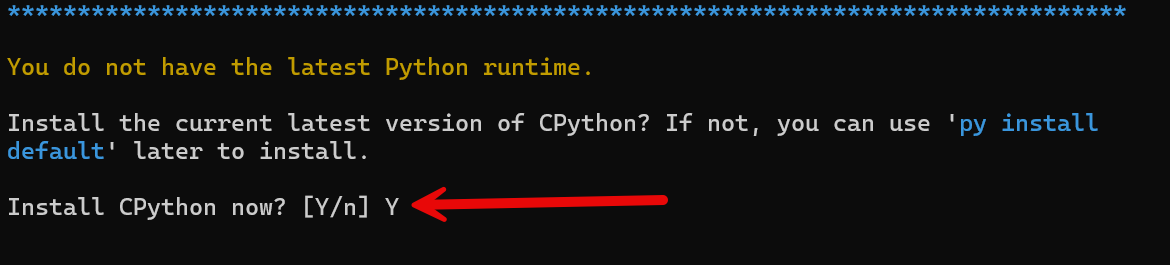
Next you'll be asked if you want to "Install CPython now?" You should answer yes to this question. Type the letter y and then press enter to continue the installation process.
|
| Step 5 |
Finally you'll be asked if you want to "View online help?" You can say no to this one. Type the letter n and then press enter to complete the installation process.

|
| Next Steps |
With Python installed successfully, now all that's left is to install VS Code! Click here for step-by-step instructions.
|