| Step 1 |
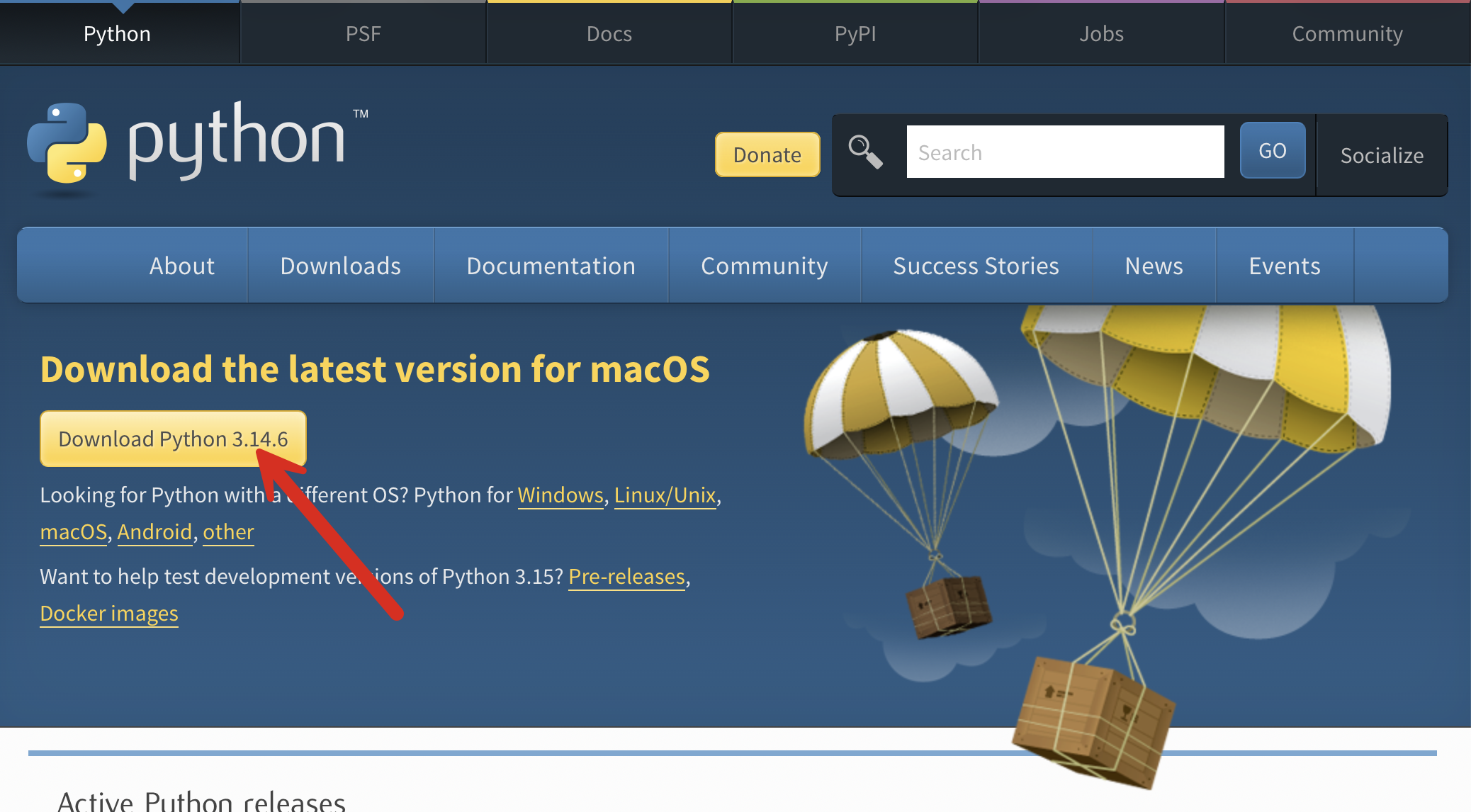
Visit the Python website (https://www.python.org/downloads/) and click the download button as shown in the screenshot. The Python community releases frequent updates. Don't worry if the version you download is newer than the one in the screenshot below. You should download and install whatever release is linked to the download button.
|
| Step 2 |
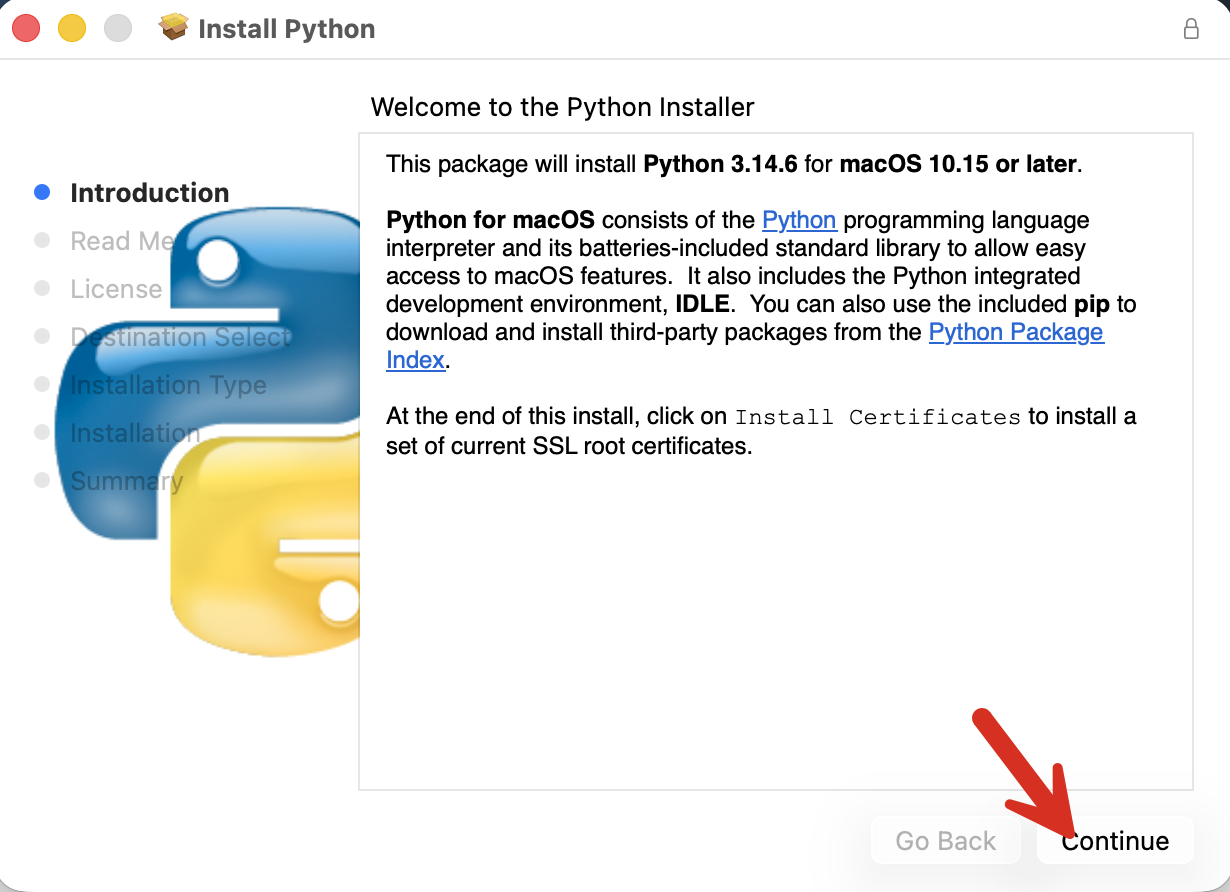
Find the file that you just downloaded and run it. This should open the Python installer.
|
| Step 3 |
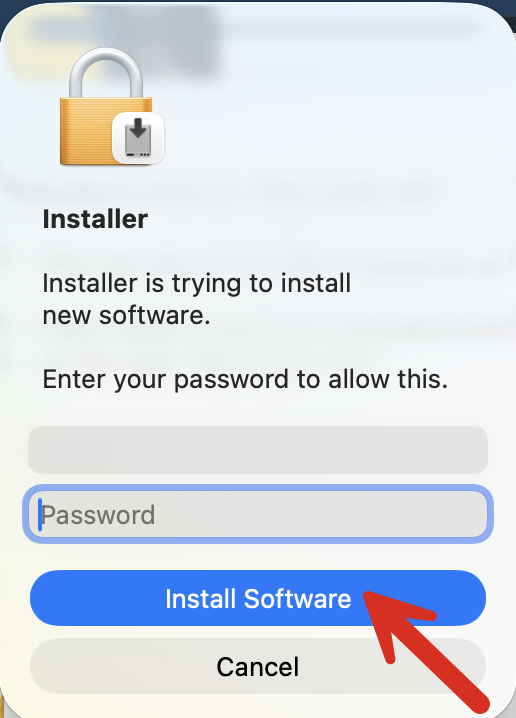
You'll likely be asked for your Username and Password to approve the installation. Enter your credentials if asked.
|
| Step 4 |
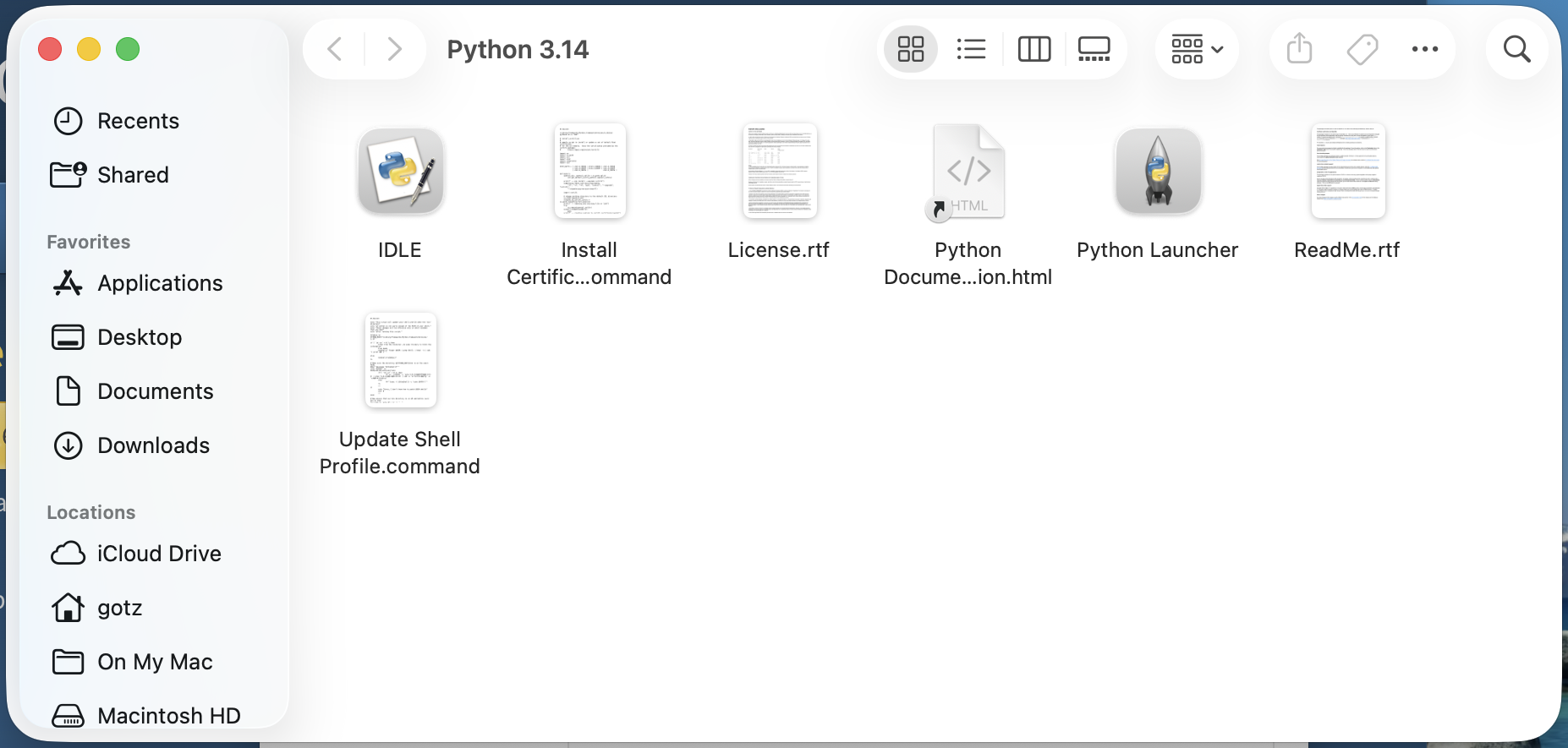
When the installation is complete, a Finder window will appear that shows the main Python folder that you just installed. Don't close this window! If you do close it by accident, you can use your Finder to open it again. Just open Finder, navigate to Applications, then open the Python 3.x folder (instead of x, there will be a number which reflects the version of Python that you just installed on your computer).
|
| Step 5 |
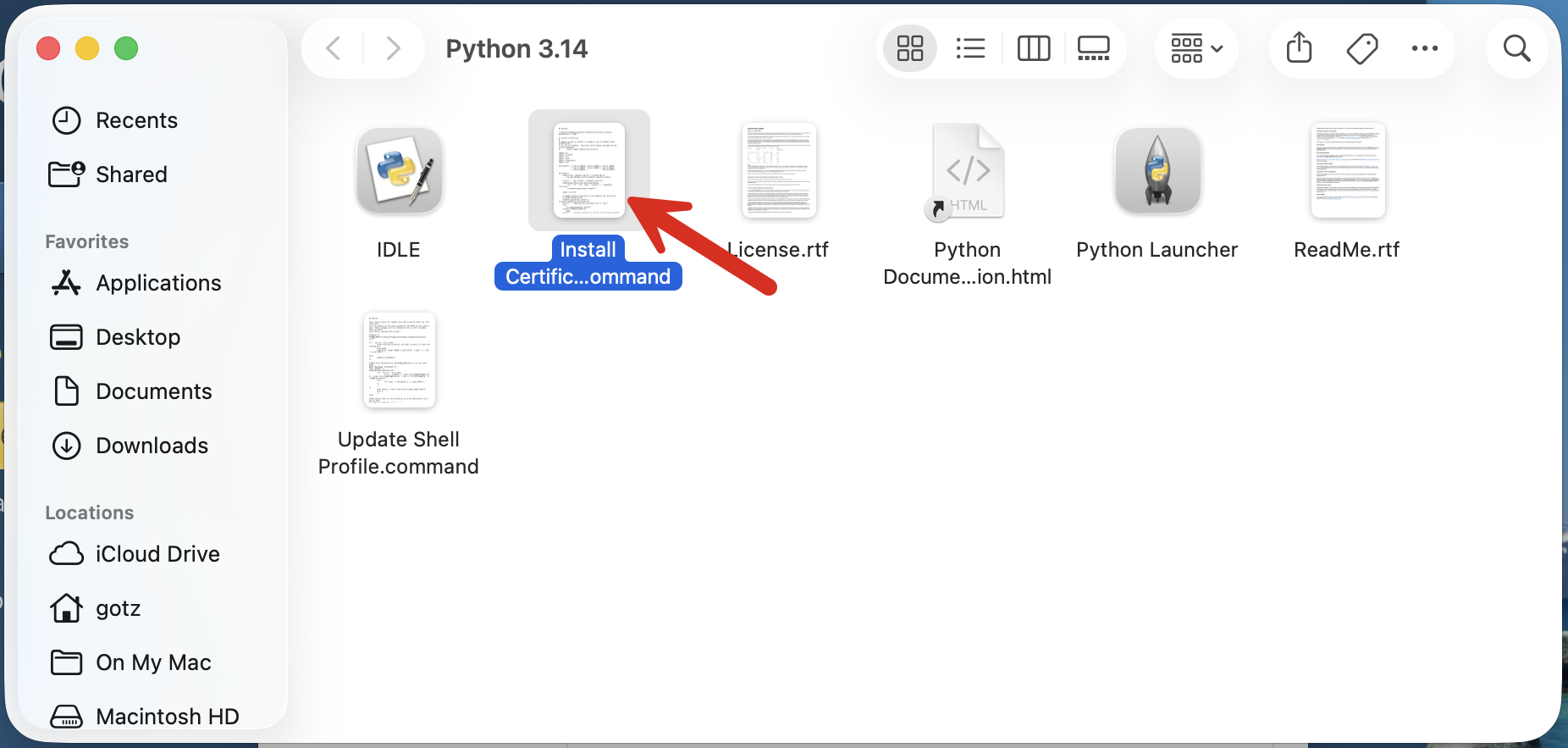
Run the "Install Certificate.command" program. You can double-click on it to run it. A terminal window will launch and execute the script. Once it completes, you can close the terminal window that it opened on your computer.
|
| Step 6 |
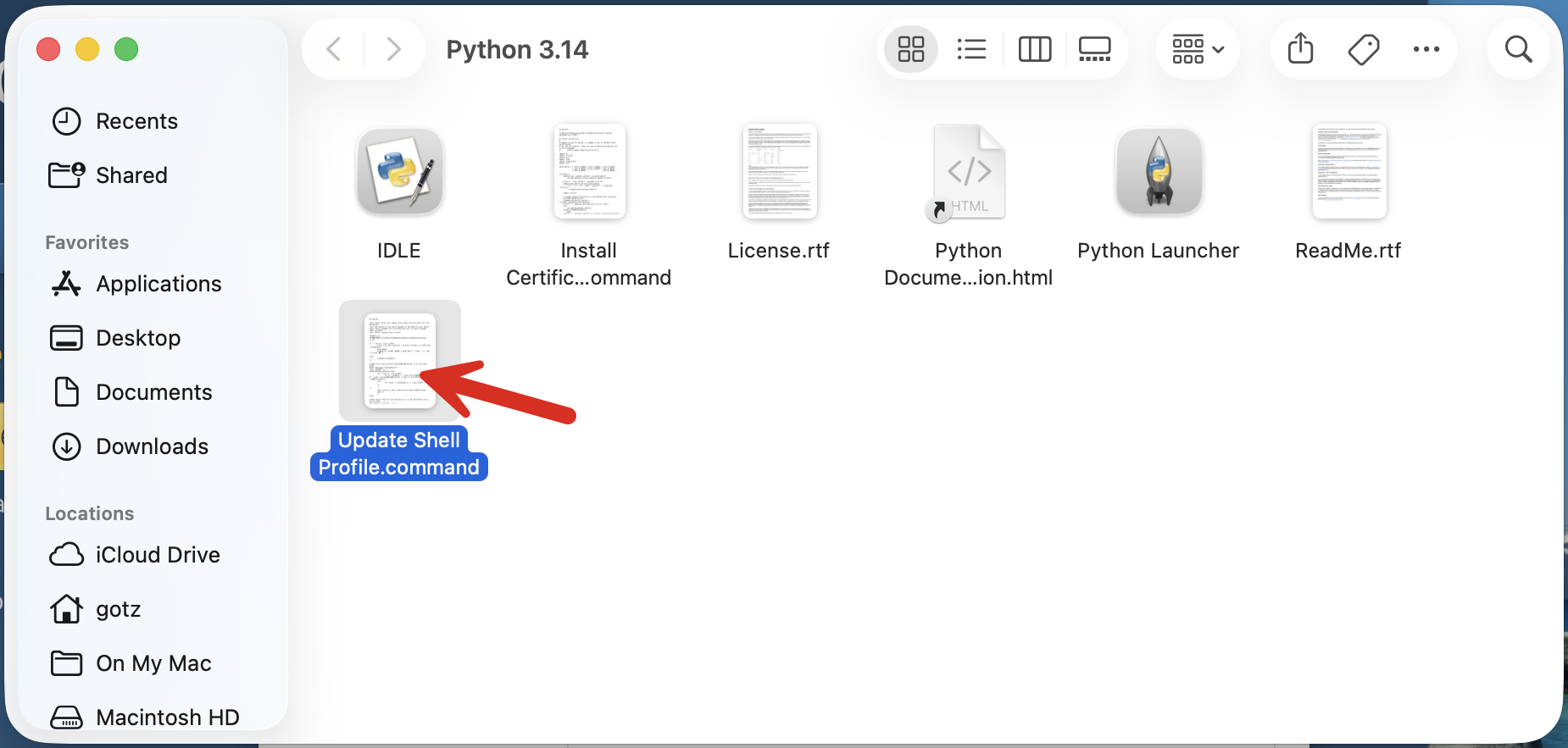
Now run the "Update Shell Profile.command" program. You can double-click on it to run it. A terminal window will launch and execute the script. Once it completes, you can close the terminal window that it opened on your computer.
|
| Step 7 |
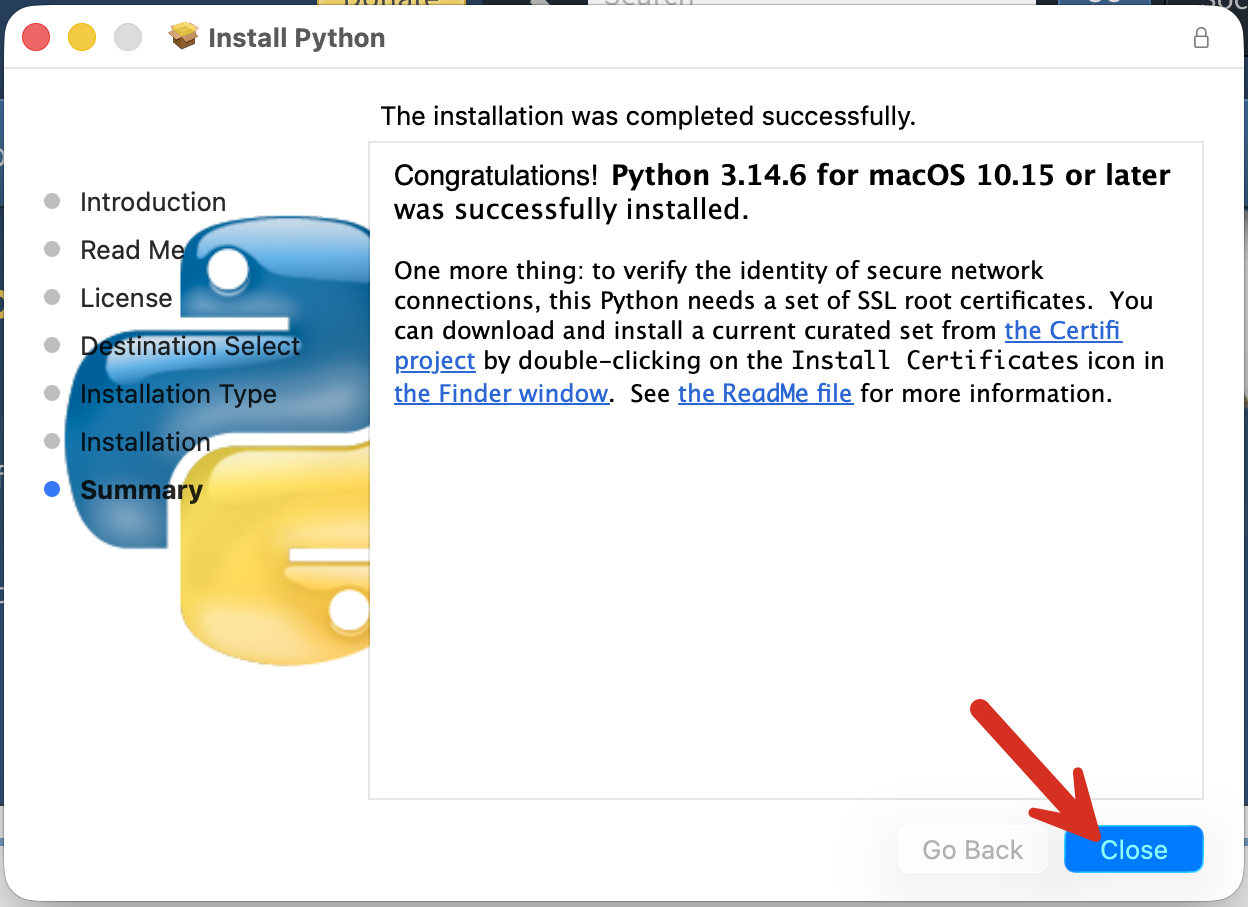
Close the finder widow and return to the Python installer program. You should see a message stating that the Python installation succeeded. Click Close to dismiss the installer.
|
| Next Steps |
With Python installed successfully, now all that's left is to install VS Code! Click here for step-by-step instructions.
|