| Step 1 |
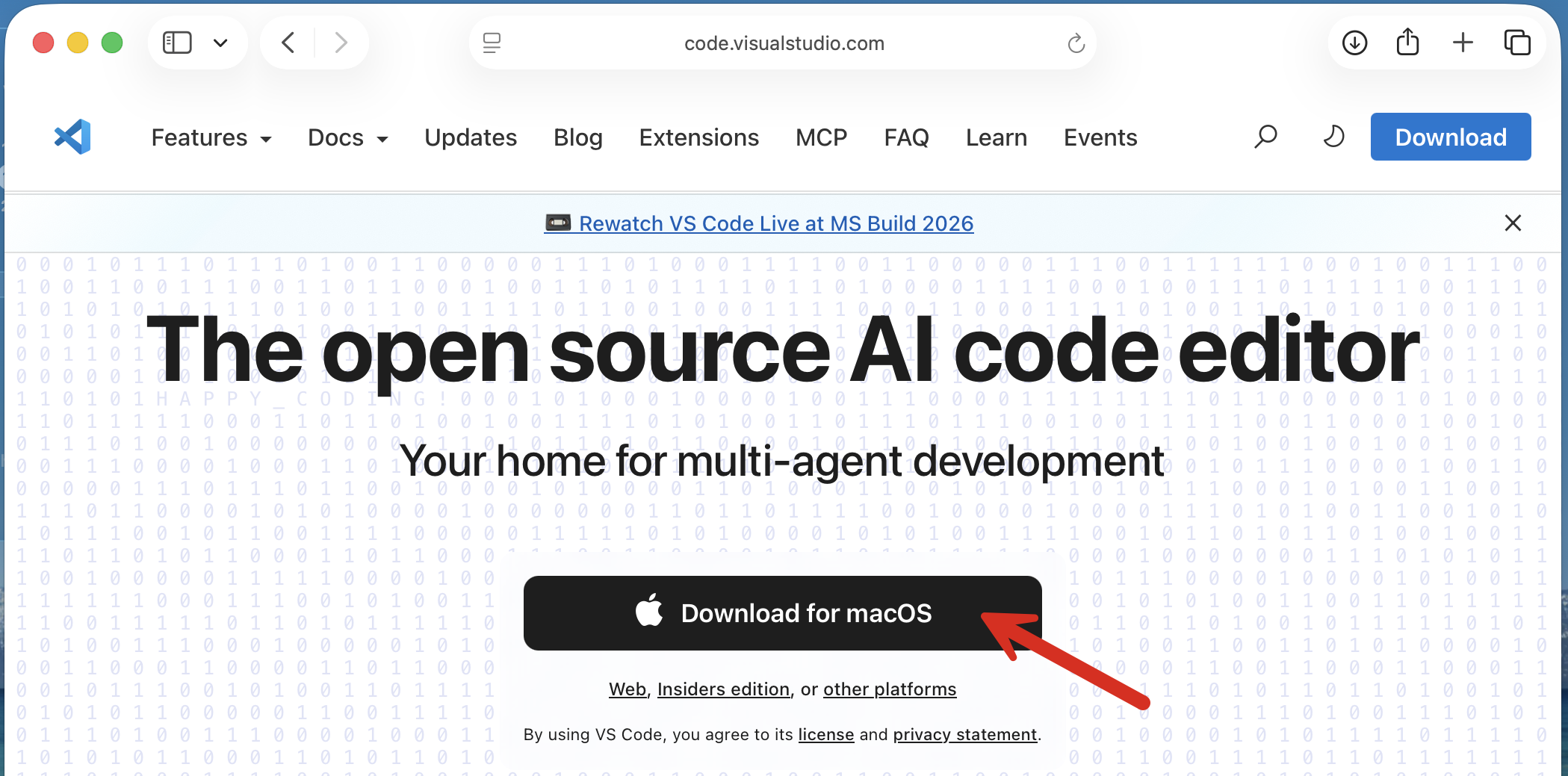
Use your web browser to visit the VS Code website (http://code.visualstudio.com). Click the black "Download for macOS" button to download the VS Code installer to your computer.
|
| Step 2 |
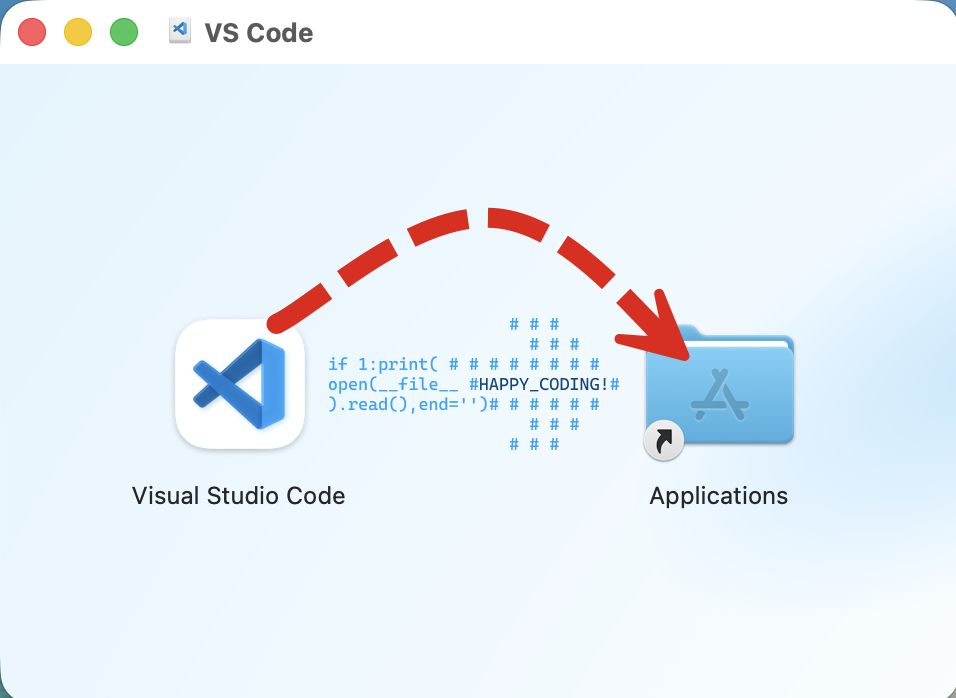
Run the installer that you just downloaded. It should open a VS Code installer window as shown in the screenshot. Drag the Visual Studio Code icon in the installer into the Applications folder in the installer. This will initiate the installation process.
|
| Step 3 |
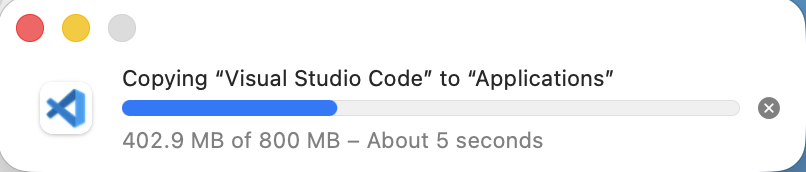
You'll see a progress bar that says 'Copying "Visual Studio Code" to "Applications"'.
|
| Step 4 |
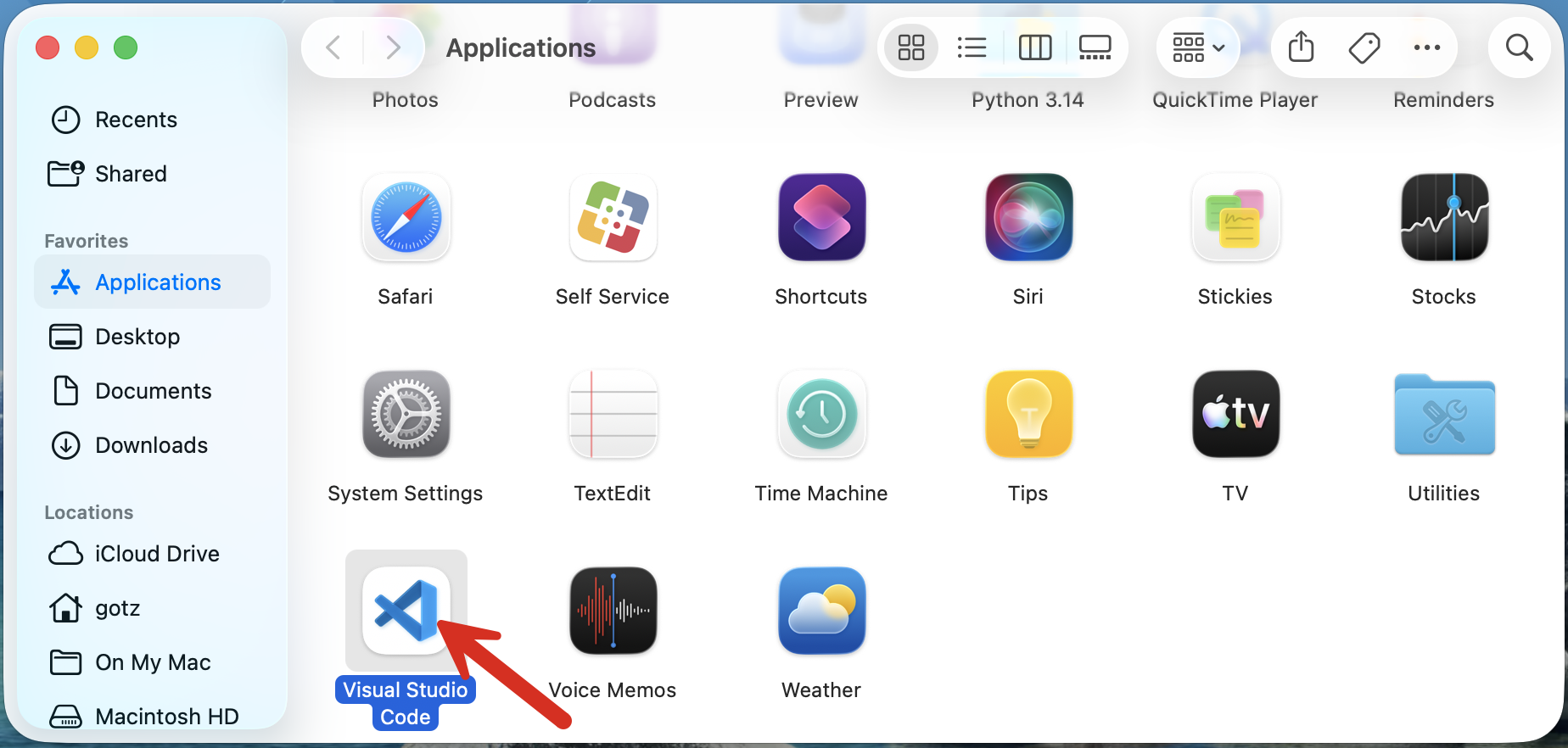
Once the copy completes, the Applications folder should open showing you the Visual Studio Code icon. You can double click it to start the Visual Studio Code program (which we'll call VS Code from now on).
|
| Step 5 |
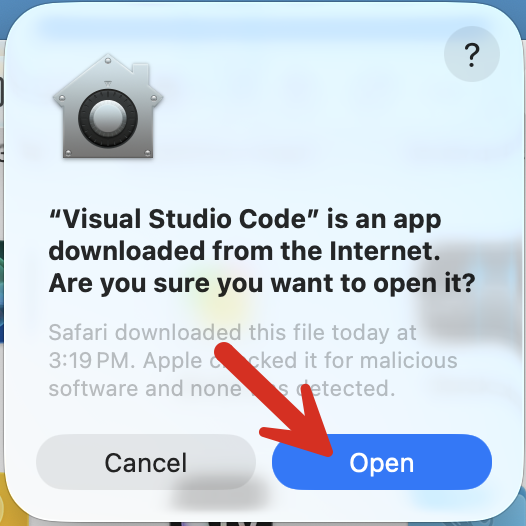
The first time you run VS Code, you'll likely see a message asking if you are sure that you want to open it. This is part of the Mac security system which encourages you to be suspicious of any new software. In this case, you intentionally installed VS Code, so click Open to proceed with opening the VS Code program.
|
| Step 6 |
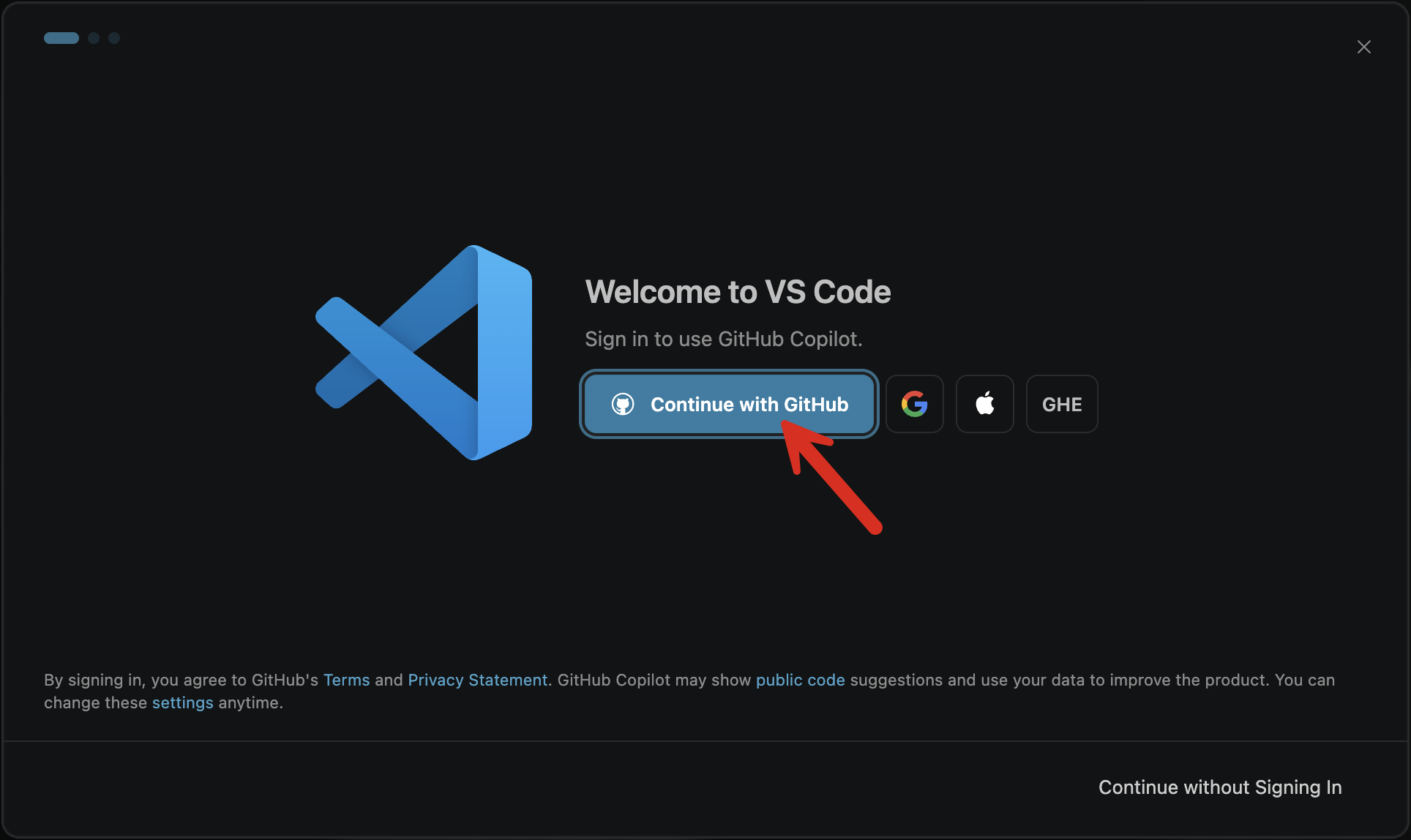
You will next see a Welcome to VS Code screen. You'll want to authenticate with your GitHub account to access the full features of VS Code. Click the "Continue with GitHub" button.
|
| Step 7 |
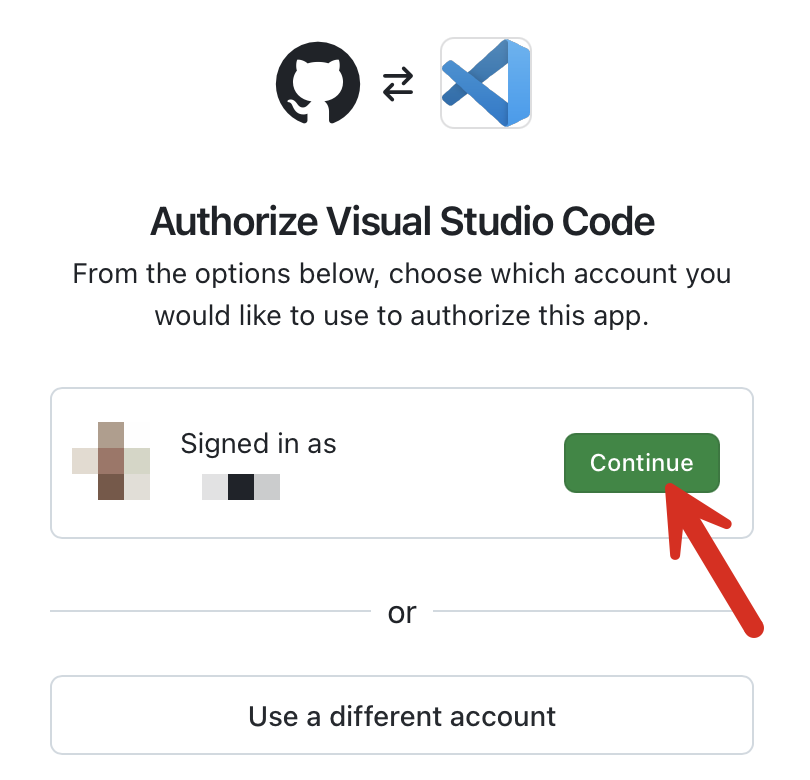
Login to your GitHub account and you'll eventually arrive at the "Authorize Visual Studio Code" page. Click the green Continue button to link your GitHub account with the installation of VS Code on your computer.
|
| Step 8 |
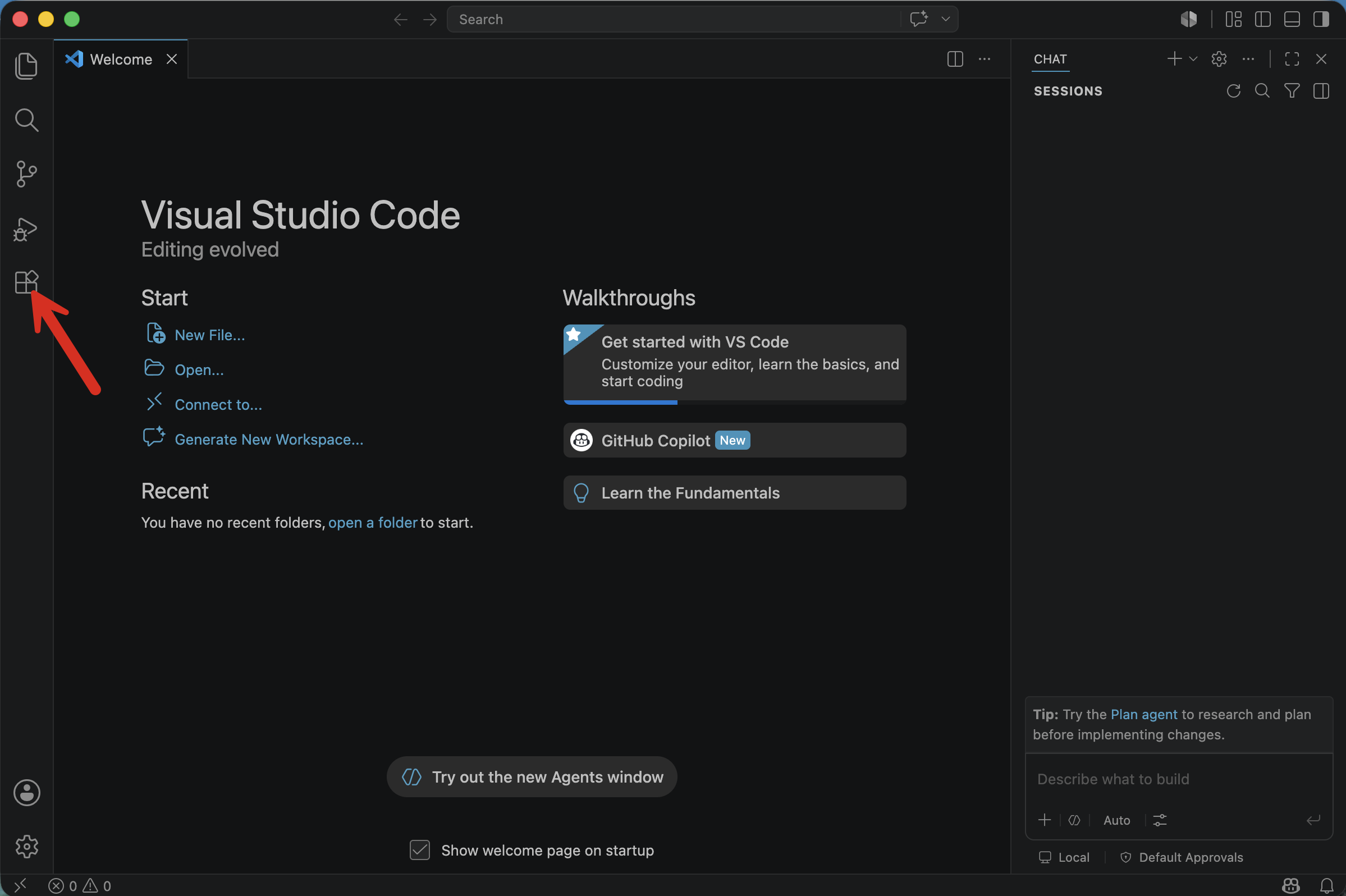
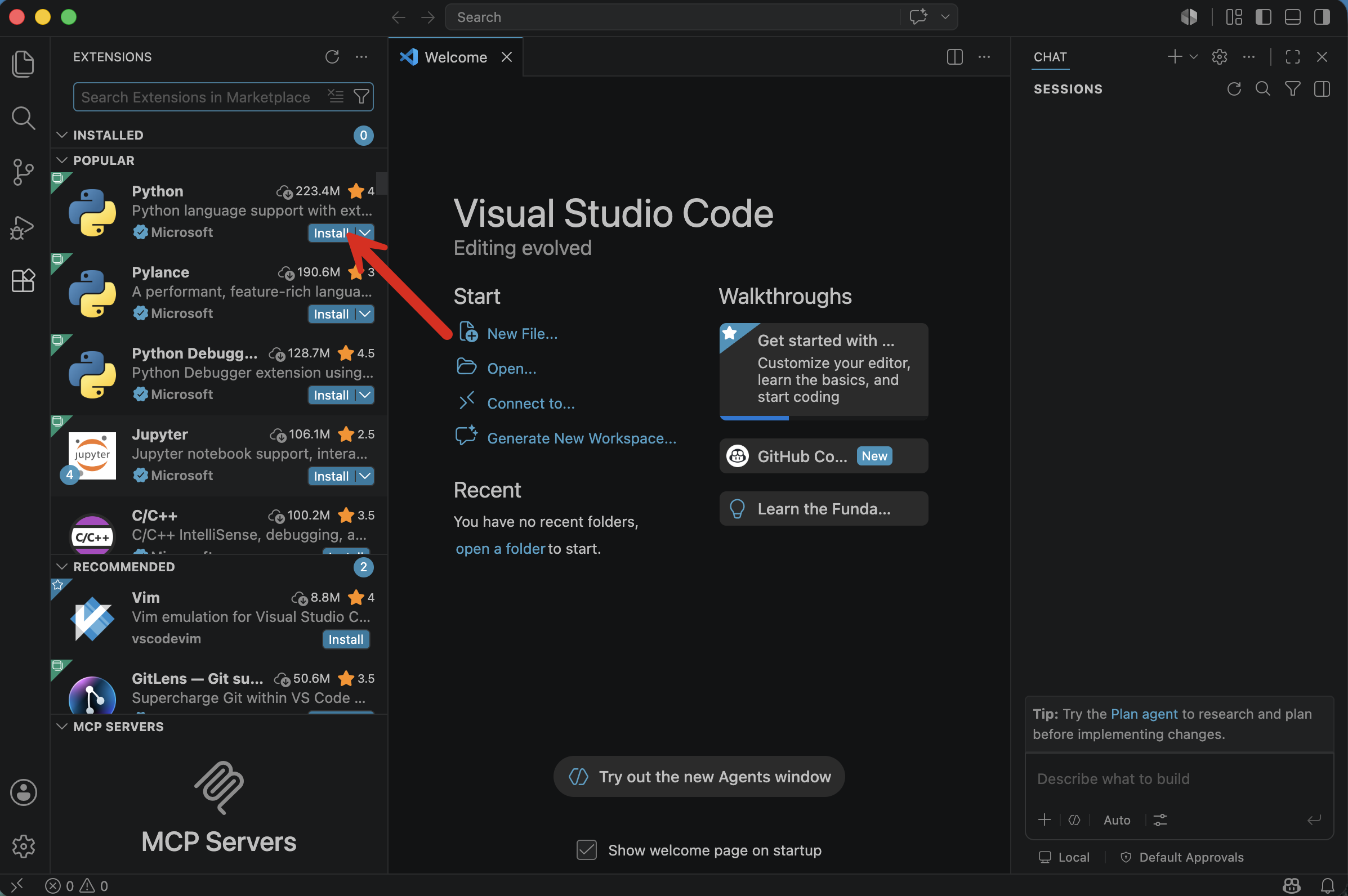
VS Code is installed! Now we just need a couple of additional configuration steps before it's 100% ready for us to use in this class. First, we'll need to install the extensions for Python programming. It turns out VS Code can support programming in MANY different languages. However, for this class we'll focus only on Python. Therefore, we'll install the Python extensions for VS Code. TO make this happen, we'll first click on the Extensions icon on the left side of the screen.
|
| Step 9 |
Search for Python if needed. Since Python is so popular, it might be at the top already as in this screenshot. Click the blue Install button for the Python extension to install the needed components.
That's it! You've installed VS Code! You can exit the application. We'll come back to VS Code regularly this semester for both classroom exercises and homework. For now, however, you can quit the VS Code app.
|
| Step 10 |
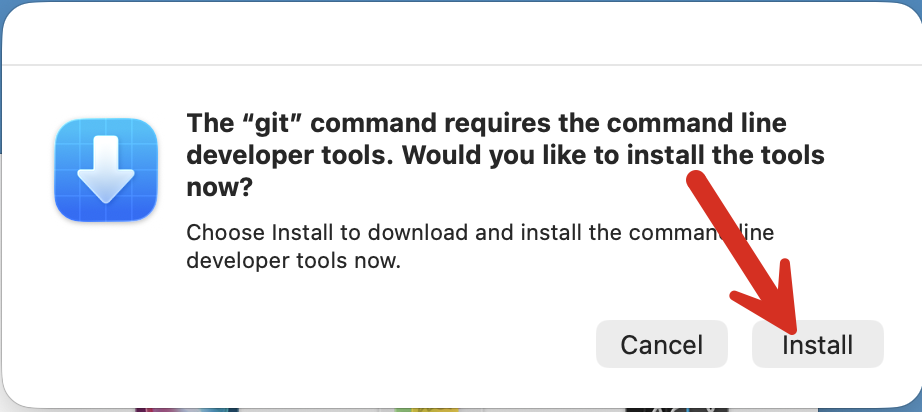
You may notice once you close VS Code that another window has appeared mentioning "git" as in the screenshot below. If you don't see it now, you might see it later once you start using VS Code in new ways. Your Mac is detecting that you are trying to use git, the software from which GitHub gets its name. VS Code uses git to interact with GitHub. However, git is not installed by default on your computer. If you haven't previously installed git, you'll need to install it now. Simply click the install button and let the computer do its work. You'll have to agree to a License Agreement as part of the installation process. However, once the installation completes, you'll have git on your computer.
|