It doesn't matter where you choose to save and store your work on your client,
but it does matter that you decide on a consistent location and a consistent naming convention,
so you will be able easily to find your materials.
Let's start by making a decision - do you want to store all work relating to INLS161-001 on your desktop, or in your documents folder?
This is your choice, but remain consistent with it.
desktop or documents∕
Then, subordinate to (or, within) the desktop or documents folder, create a new sub-folder for this semester.
Use this naming convention so your stored materials will automatically be stored chronologically.
desktop or documents∕
2026-7fall∕
Then, subordinate (or, within) the 2026-7fall folder,
create a new sub-folder for this class.
desktop or documents∕
2026-7fall∕
INLS161-001∕
Then, subordinate (or, within) the INLS161-001 folder,
create five new sub-folders, one each for each of the class tasks that will require submissions.
desktop or documents∕
2026-7fall∕
INLS161-001∕
task01∕
task02∕
task03∕
task04∕
task05∕
Store your work in these locations, so you will know where to find your work when it comes time to store and submit it.
You may choose to use this location for other classes as well.
desktop or documents∕
2026-7fall∕
INLS161-001∕
task01∕
task02∕
task03∕
task04∕
task05∕
INLS201-001∕
PSYC230-001∕
Once you have your files set up on your client,
you may wish to synch them with a duplicate copy on your UNC OneDrive space.
Doing so will give you access to your files even if you need to access them from a computer other than your laptop.
Things to remember about naming your files and directories
To do
A good format for dates is YYYYMMDD. This format ensures that your files automatically sort in chronological order.
Try to make filenames as short as possible, while remaining meaningful.
You may use capital letters to delimit words, as in UseCapitalLettersToDelimitWords.
Always use leading zeroes in a sequence of numbers, so the sequence will read
01, 02, 03, 11
and not
1, 11, 2, 3.
NOT to do
Do not use capital letters in filenames unless it's absolutely necessary (delimiters are exceptions)
Even if your operating system allows you,
do not save files containing these characters
~ ! @ # $ % ^ & * ( ) ` ; > < ? , [ ] { } ' " | .
You may encounter difficulties searching for or opening them
Do not leave spaces in file or directory names. Instead,
replace_spaces_with_an_underscore separator
or
replace-spaces-with-a-dash separator
or
replace.spaces.with.a.dot separator
Some applications will not recognize file or directory names that have spaces in them.
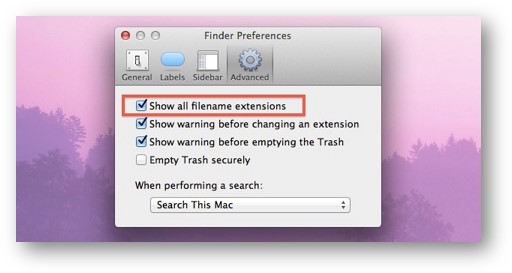
Set up our clients to always show file extensions.
A file extension, sometimes called a file suffix or a filename extension,
is the character or group of characters after the period that makes up an entire file name.
By default, most Mac and Windows laptops are set up to hide file name extensions by default.
We want to show them by default.
Every file name must end in a dot followed by a file extension
to specify which program on your computer the file is associated with.
An example might be this-is-a-text-document.txt
Setting up your client to show file extensions
On a Mac, filename extensions are usually hidden in macOS, but you can change that.
In the Finder on your Mac, choose Finder > Settings, then click Advanced.
Select or deselect “Show all filename extensions.”
All extensions are shown, even for files that have “Hide extension” selected
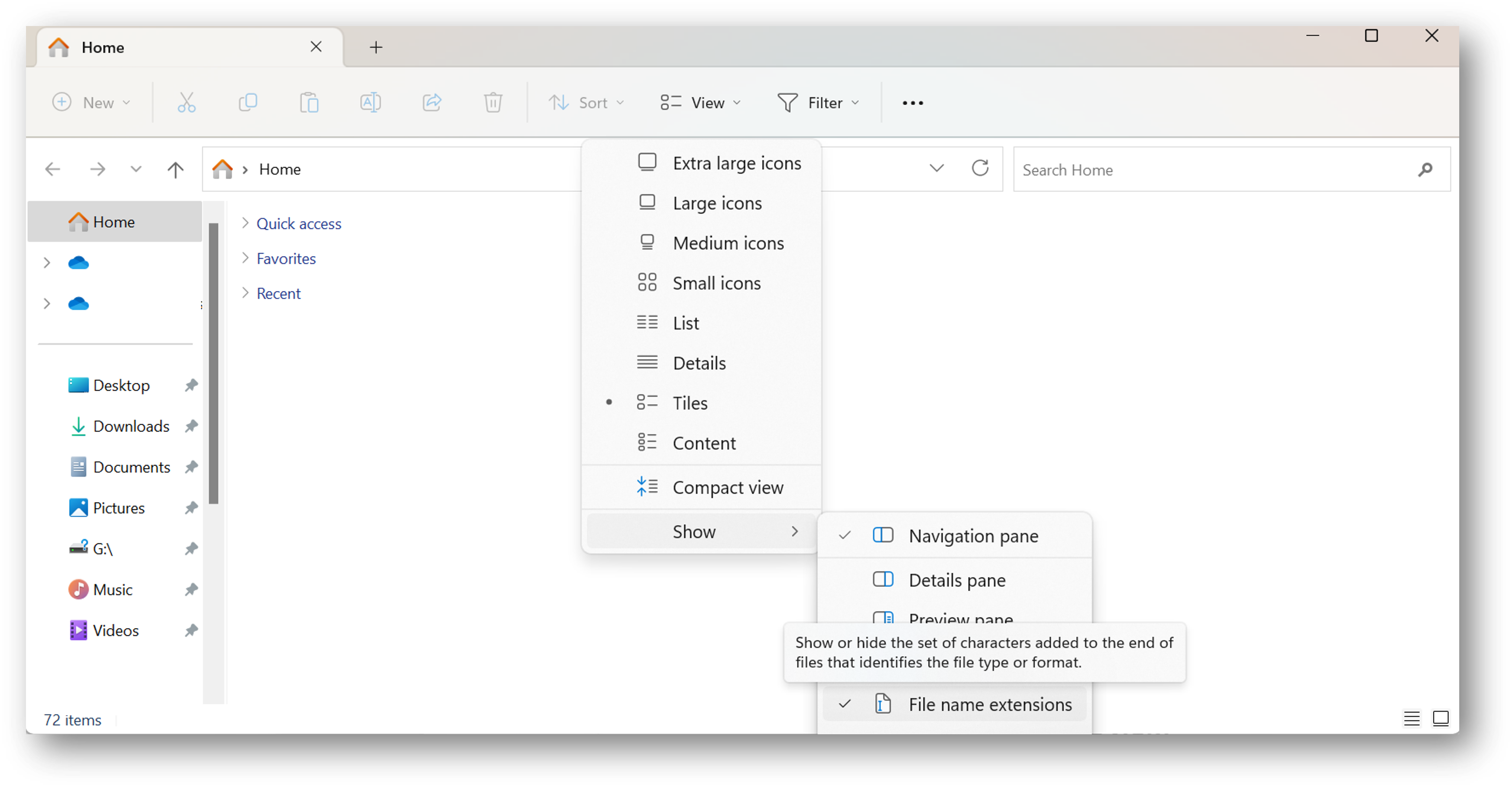
In Windows, filename extensions are also usually hidden, but you can also change that.
Open the File Explorer
Click on View from the top
Now click on Show
Then select File name extension
Select or deselect “Show all filename extensions”
Everyone has their own storage space on a SDIS server named Opal
SDIS ITS manages a number of servers. Two will be of relevance to us.
Internet Protocol (IP) Address
Name
specific function
152.2.11.70
opal.ils.unc.edu
each of us has our own, private, space in which we will store our task 02 web site
152.2.11.74
ruby.ils.unc.edu
our class web pages used to be stored on this server
The address you will use to see your work on the Opal server will be