Tools for Information Literacy ⑮ Professional presentations
What should we think about when creating a presentation?
Why do we need or want to have a visual display behind us when we give a presentation?

Is Powerpoint the only presentation tool?
It most definitely is not.
Come on, who else did you think would be at the top? It's all good that you want to root for the underdog, but nobody comes close to PowerPoint's firm grip on the presentation software market.
In an article about the topic, one observer noted
Like so many instructional practices, PowerPoint is not inherently good or bad.
It's all about how we use it
and that's not something about which we can afford to be complacent.
With that as warning, there are options and you might consider
- LibreOffice
- Google Slides
- Keynote
- Prezi
- SlideShare - but, of course, you have to create in order to share
But the real need is to use the tool that can do what you need done.
And PowerPoint is still the industry standard.
Is it evil?
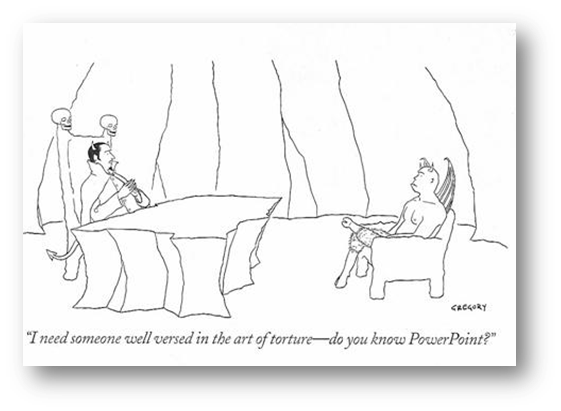
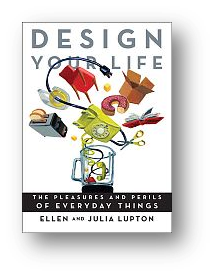
One respected person implies that it is. But other voices suggest that it can be useful.
PowerPoint has gotten a bad rap
on account of the ugly and inane stuff people do with it ...
Yet PowerPoint (is) not inherently evil ...
(it has) been abused and over-used to the point of exhaustion (p. 179).
Or is it good?
We can easily find bad examples. But are there good uses for it?
Or is it just how we (mis)use it?
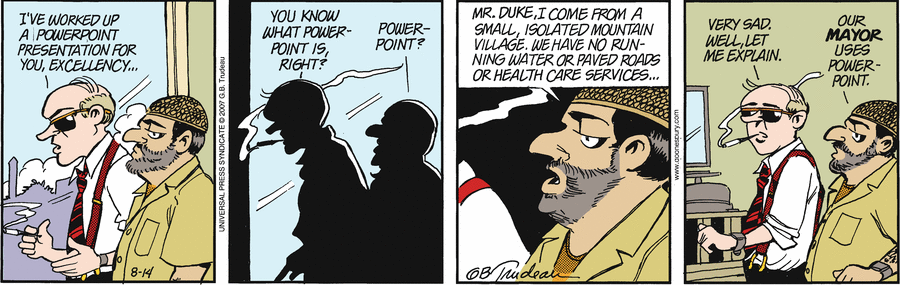
Is PowerPoint bad?
No, in fact, it is quite a useful tool.
- Boring talks are bad.
- Poorly structured talks are bad.
Don't blame the problem on the tool.
We will view most of these topics using PowerPoint itself
Tour of the workspace - note the commonalities with the other Office applications
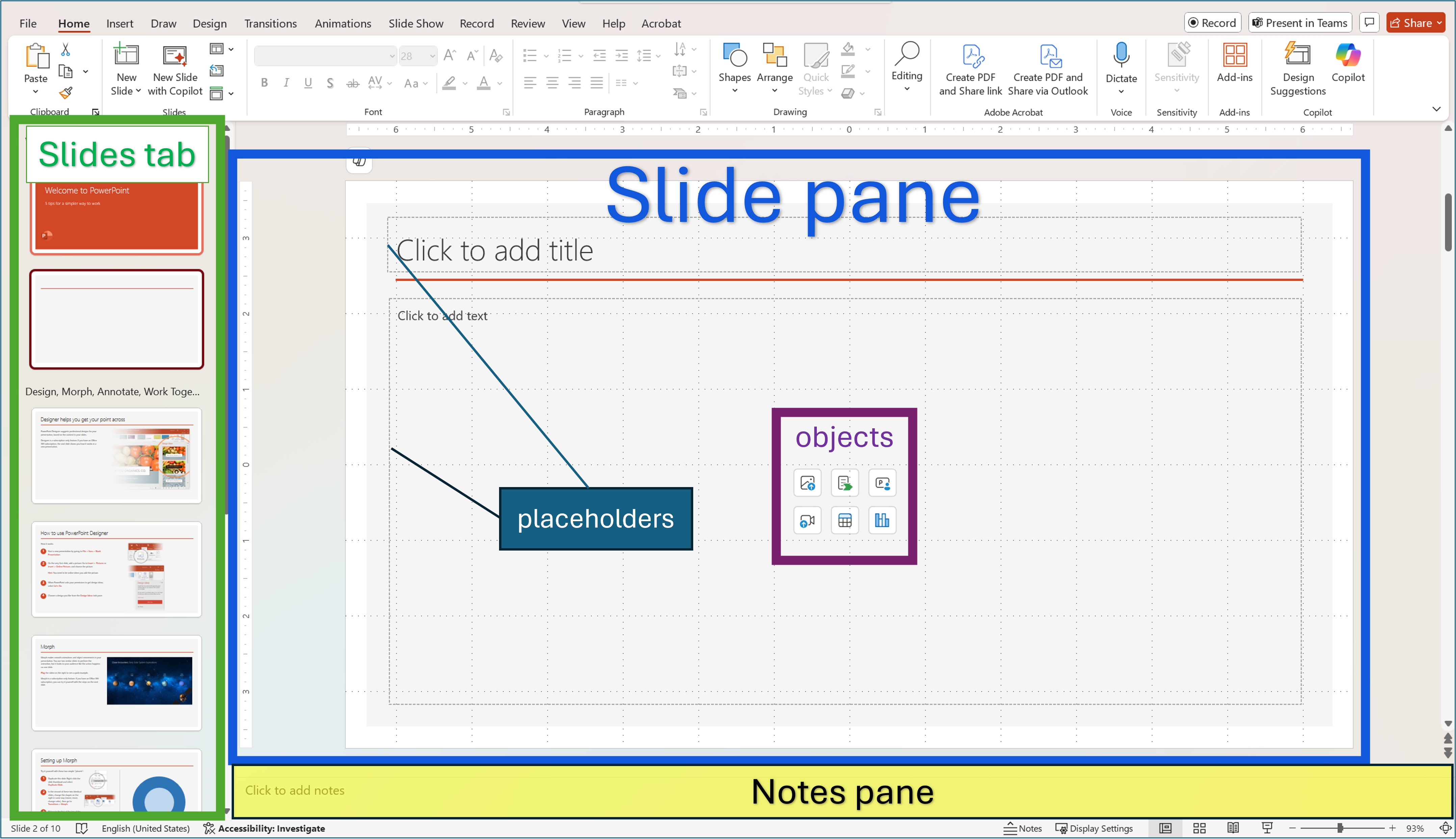
In the Slide pane, you can work directly on individual slides.
Dotted borders identify placeholders where you can type text or insert pictures, charts, and other objects
- placeholders Boxes with dotted or hatch-marked borders that are part of most slide layouts. These boxes hold title and body text or objects such as charts, tables, and pictures.
- object A table, chart, graphic, equation, or other form of information. Objects created in one application, for example spreadsheets, and linked or embedded in another application
The Slides tab shows a thumbnail version of each full size slide shown in the Slide pane.
After you add other slides, you can click a thumbnail on the Slides tab to make the slide appear in the Slide pane. Or you can drag thumbnails to rearrange the slides in your presentation. You can also add or delete slides on the Slides tab.
In the Notes pane, you can type notes about the current slide.
Working Views
Normal view shows you three frames simultaneously
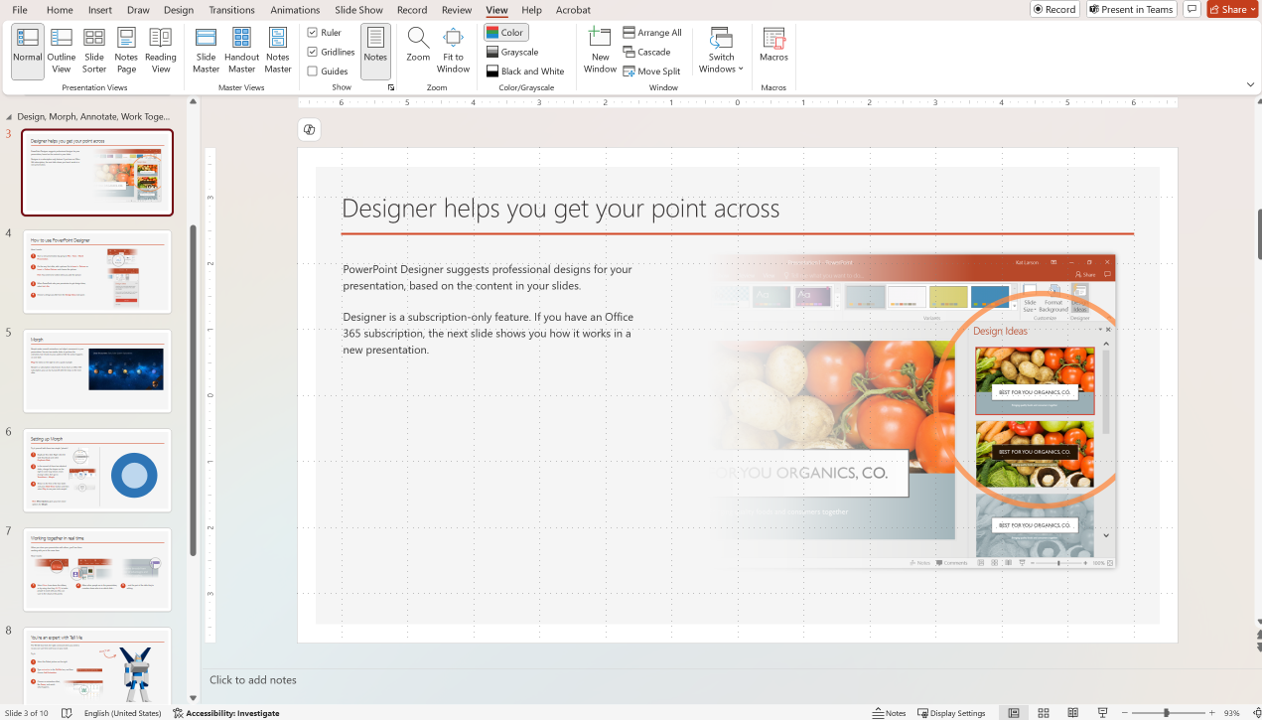
Outline view shows you three frames simultaneously but with a different slides tab view
- outline of entire presentation
- you can also use the outline tab to edit text on slide formats
- or the slides tab to see a miniature, which you can edit in the slide pane
- individual slide
- notes to be attached to slide
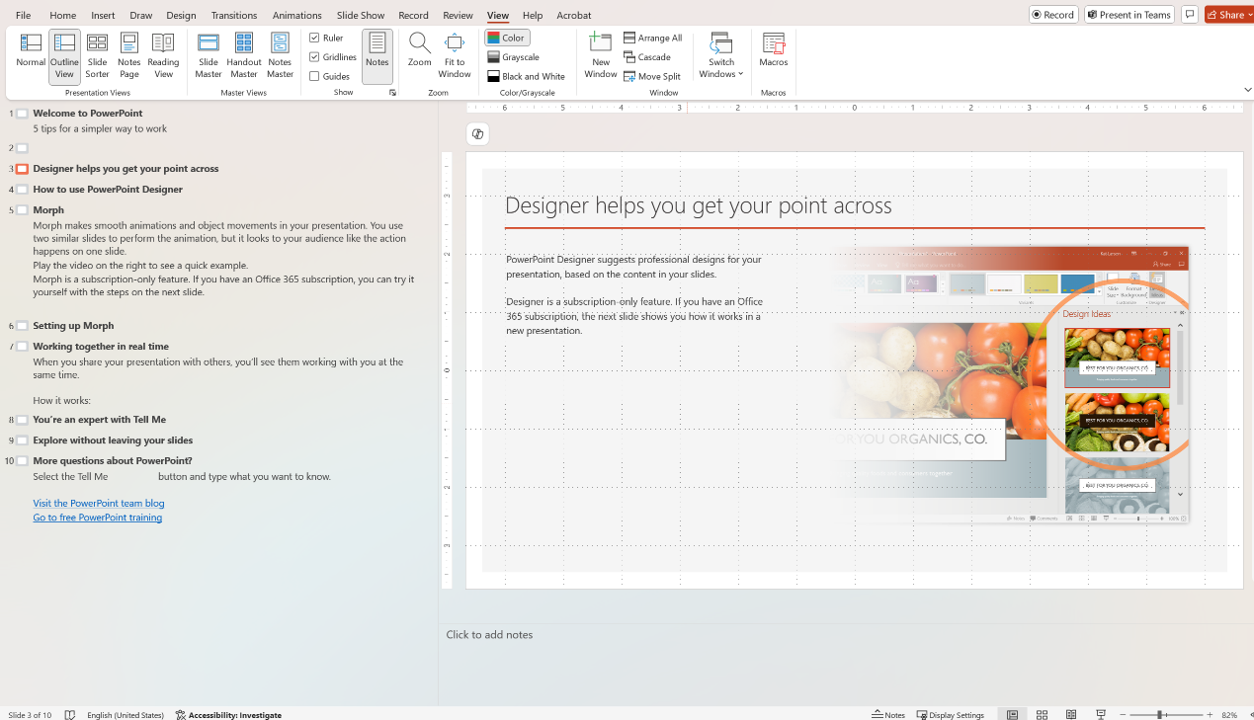
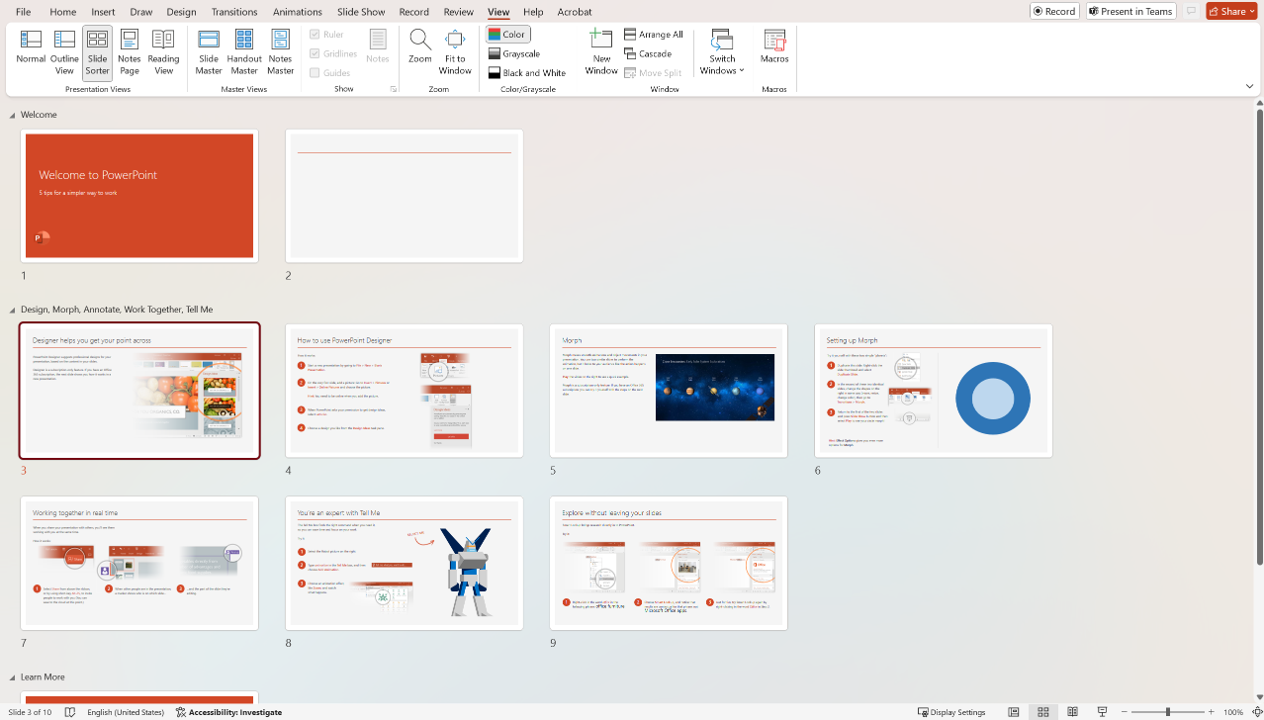
You can edit text on slides by typing either in the outline tab or the slide pane and you can change the order of slides by moving slides in the outline tab or in the Slide Sorter view.
Slide Sorter View shows you miniature images of all the slides in the presentation.
Slide Show View takes over your screen to show you a single slide in presentation format.