Tools for Information Literacy ⑬ Data visualization
Using Excel to create visualizations
Does it matter?
Lessons for data analysts from the Challenger disaster tells us good data display could be a life or death issue.
But there are always several different ways to view the same situation and not everyone agrees with Tufte.
to show comparisons
Column charts compare values across categories.
![[column chart types]](images/task04/spreadsheets.column-chart-types.png)
The same is true in Excel for Mac
![[column chart types]](images/task04/spreadsheets.column-chart-types.mac.png)
bar charts are essentially the same thing, but oriented on the horizontal axis. Excel asserts they are the best chart type for comparing multiple values.
The same is true in Excel for Mac
![[bar chart types]](images/task04/spreadsheets.bar-chart-types.png)
to show trends or change over a period of time
Line charts compare continuous data over time against a common scale and are ideal for showing trends.
![[line chart types]](images/task04/spreadsheets.line-chart-types.png)
The same is true in Excel for Mac
![[line and pie chart types]](images/task04/spreadsheets.line-chart-types.mac.png)
Area charts are a variant of line charts
Area charts emphasize differences between several sets of data over a period of time.
![[area chart types]](images/task04/spreadsheets.area-chart-types.png)
Scatter charts
Scatter charts compare pairs of values, depicting them as sets of X and Y coordinates.
![[scatter chart types]](images/task04/spreadsheets.scatter-chart-types.png)
percentages
Pie charts displaypercentages
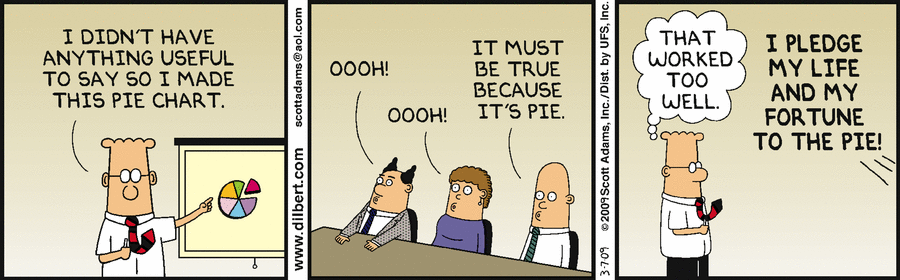
But column charts do the same and in a more revealing fashion. Use a pie chart to show the relationship or proportion or parts to a whole, only when you want your chart to be metaphoric.
![[pie chart types]](images/task04/spreadsheets.pie-chart-types.png)
To quote Edward Tufte in The Visual Display of Quantitative Information, p. 178
... the only worse design than a pie chart is several of them ...
Given their low data-density and failure to order numbers along a visual dimension,
pie charts should never be used.
Pie charts, however, are useful when the point is proportionality
Pie Charts are best at visually illustrating the proportion of a part in relation to the whole.