Tools for Information Literacy ④ The structural layer
Hyperlinks
Using anchor tags to hyperlink to other locations
Anchor tags allow you to embed instructions that tell the browser to open a hyperlink in another location - either another place in the current page, or another web page, or another place in another web page.
Remember: tag attribute value
The next step is to add some simple hypertext links
This too, is straightforward. You can add an anchor to our course home page by adding the following code to your page (by typing this text into your original file, still on your computer).
<a href="https://ils.unc.edu/~bergr/courses/2025-6_fall/inls161_001/index.html">The INLS161-001 Home Page</a>
Talking to ourselves, we could say:
-
anchor the text wrapped inside this anchor tag
-
to an address (known as a Hypertext REFerence)
-
with a value expressed in its absolute web address of https://ils.unc.edu/~bergr/courses/2025-6_fall/inls161_001/index.html
- (the text being anchored, which is) The INLS161-001 Home Page
-
with a value expressed in its absolute web address of https://ils.unc.edu/~bergr/courses/2025-6_fall/inls161_001/index.html
-
to an address (known as a Hypertext REFerence)
- and close the anchor tag
The above <a> anchor tag can appear anywhere between the <body> and </body> tags.
href (or hypertext reference) is an attribute of the tag.
In this case, the href has a value which
indicates what web page is on the other end
of the anchor you just created (in other words, what page should get fetched if you click on the anchor, sometimes and more commonly called a hyperlink).
Each tag in HTML has a set of possible attributes, some required, some optional.
The href attribute and its value (the address to which this element is anchored, or hyperlinked) are required.
The best ways to learn about the possibilities is to consult an HTML reference and to look at HTML source code.
Note that like other tags, the <a> anchor tag must be mirrored with a </a> close anchor tag. You are connecting everything between the two tags to that anchor.
Note the difference between anchors and the references they use:
An ABSOLUTE REFERENCE takes you to one and only one specific location.
In our case, we used an absolute reference to go to our class home page.
A RELATIVE REFERENCE takes you to a location that is hierarchically relative to the specific location of the reference.
In our case, we used relative references to point to files that we have not yet included in our file structure, but are located in the same directory as the page on which they are written. When we create pages with those file names, the anchor hyperlink will work.
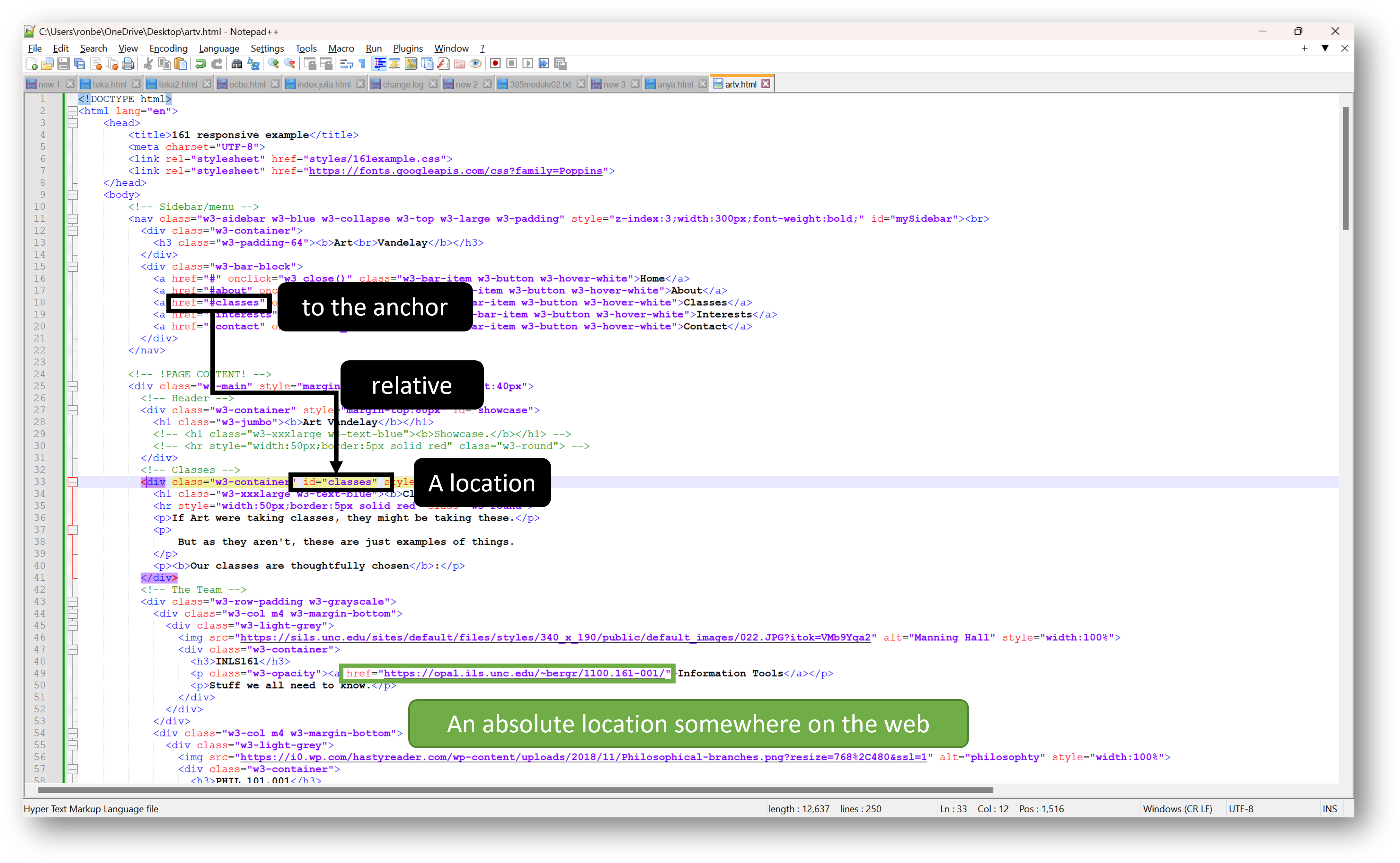
A slightly different example is displayed below.
Internal Links
The above image showed a relative link to a location internal to the page it was located on.
It's really easy to create internal (relative) hyperlinks in an HTML document. This is important if you have a long document and you want to be able to jump around or if you have a table of contents and you want to allow the reader to jump directly to a chapter or a section. We'll look at creating internal hyperlinks using your page.
For example, you may wish to move directly to the bottom of this page (the one that you are currently on). You can see that the hrefattributevalues are all internal hyperlinks to this page (specifically on line 414).
On your own pages, you must create two anchors in your HTML that represent the two ends of the hypertext link (or hyperlink). The hyperlink that you click on looks exactly like a normal anchor except that the href attribute is slightly different. Try this
- Insert the following at the top of your page: <a href="#bottom">Jump to the Bottom </a>
- and the following at the bottom of the page: <p id="bottom">Bottom of page</p>
[skipping over multiple lines of code]
<p id="bottom">Bottom of page</p>
In this example, the anchor is the hyperlink that you would click on, and the paragraph with a special ID is the place that you would jump to. Note that the anchor tagcontains a value "#" in the href and the bottom paragraph tagID value does not.
Jumping to the middle of another page
No problem, provided that there are anchors of the second form (with an "id" attribute) in that file.
Try this: Insert the following hyperlink in your page
to the location of a topic relevant to your task 02.01:
It might look like this in your code.
<a href="https://ils.unc.edu/~bergr/courses/2025-6_fall/inls161_001/04a.03.theory.html#document">well-formed web pages</a>
</li>
It's wise to always provide a way for the user to go back up to the top of the page too. You can use a text anchor
- such as this hyperlinked word [top]
-
or you can use a hyperlinked symbol, like the arrow to the right

- the hrefvalue in both both go to the top of the page because the # has no ID to find on the page and thus defaults to going to the very top of the page.
Note that each time you see the symbol on these pages,
You will see the same thing happening on line 409. (go back to Internal Links)