Tools for Information Literacy ③ Command line
Operating Systems
Q: Are we really using UNIX?
A: Maybe yes, maybe no, but it really doesn't matter.
Servers may be using either UNIX or LINUX,
but the commands for both operating systems are essentially the same.
So, if we learn the commands and behaviors for one,
we probably can work easily on the other as well.
For the rest of this page, where the word UNIX is used, you can substitute LINUX as well.
You are about to learn enough UNIX commands to be dangerous to yourself and others.
A little knowledge is a dangerous thing.
This is especially true of UNIX.
In UNIX it is possible to erase every one of your files with one little command
and never get an "Are you sure?" message or warning.
Ask me.
I've done it.
And while I've done it to my own files, some network managers have done it to every user's files.
Whether using Mac or Windows, connecting with Terminal is somewhat similar.
To login, you need to make a terminal connection to the Opal server.
For Macintosh machines, you will be using an SSH client that comes with every Apple computer (although you might not have known about it).
SSH uses ssh (the Secure Shell) to login, so that your username and password are not visible to other people on the campus network.
If you use a Mac to login from your Internet-connected computer wherever it is
-
Start the Terminal program
Go to your Applications folder, click Utilities, and select Terminal.
- A new window will pop up. It will appear blank for a few seconds; wait until a prompt appears, ending in a % sign.
-
Type ssh your_onyen@opal.ils.unc.edu
where your_onyen is your Onyen; hit Enter.
-
You will be prompted for a password.
Enter your Onyen password, but note that as you type it will look as if nothing is happening.
Don't worry--just keep typing and press Enter again.
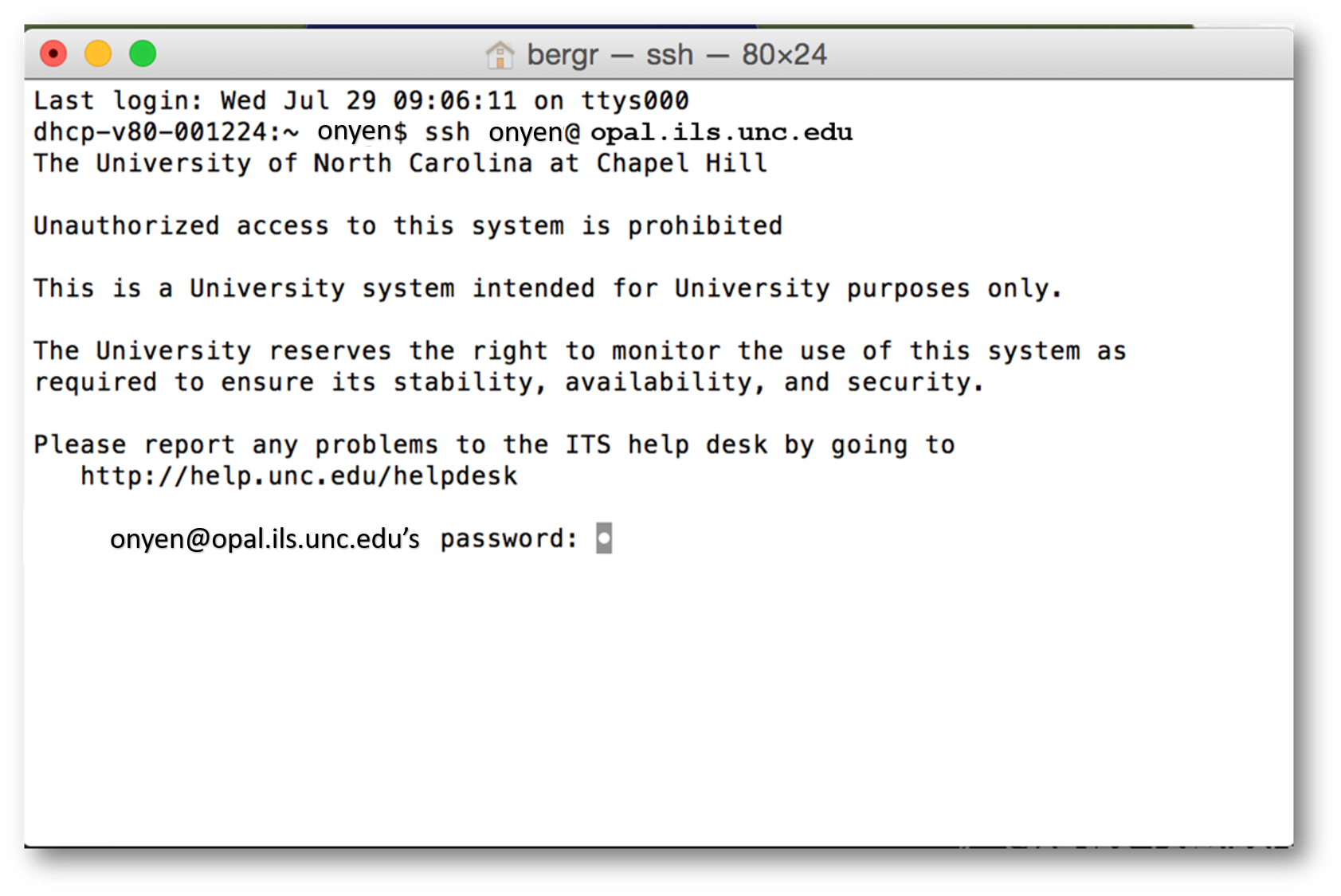
- Wait for a few seconds. When you see a prompt ending in $ you are in.
If you use a Windows system to login from your Internet-connected computer wherever it is
-
Start the Terminal program
-
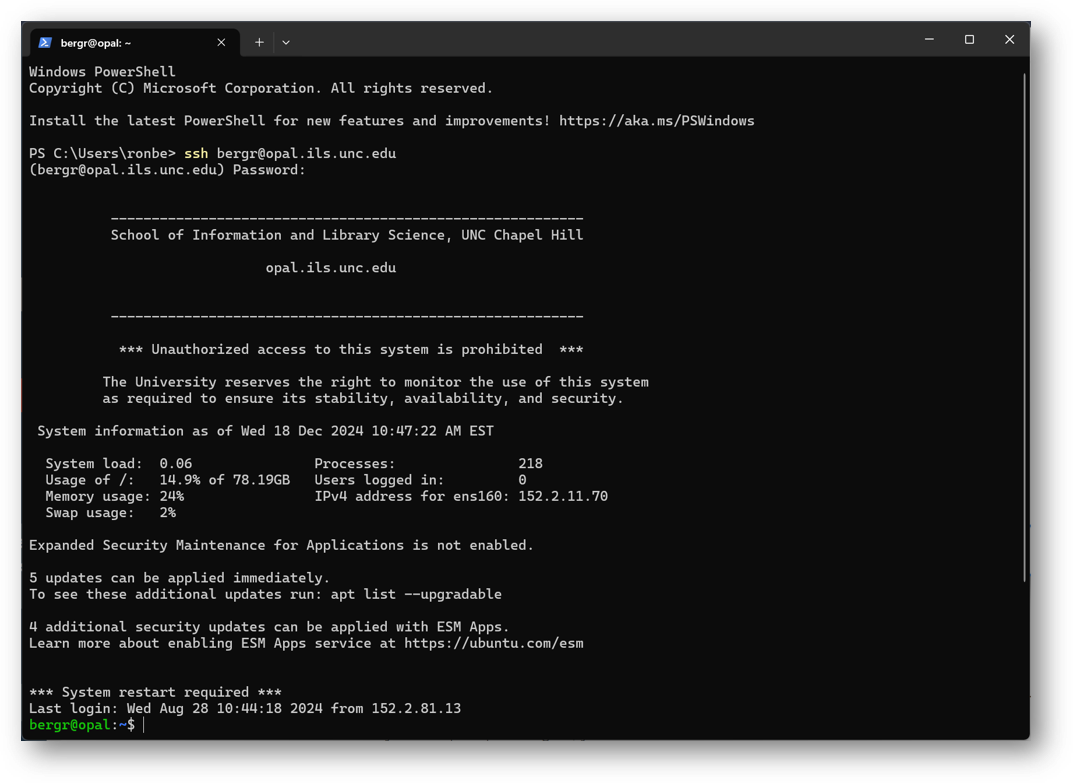
At the cursor (>), type ssh your_onyen@opal.ils.unc.edu
where your_onyen is your Onyen; hit Enter.
-
You will be prompted for a password. Enter your Onyen password, but note that as you type it will look as if nothing is happening.
Don't worry -just keep typing and press Enter again.
- Wait for a few seconds. When you see a prompt ending in $ you are in.
-
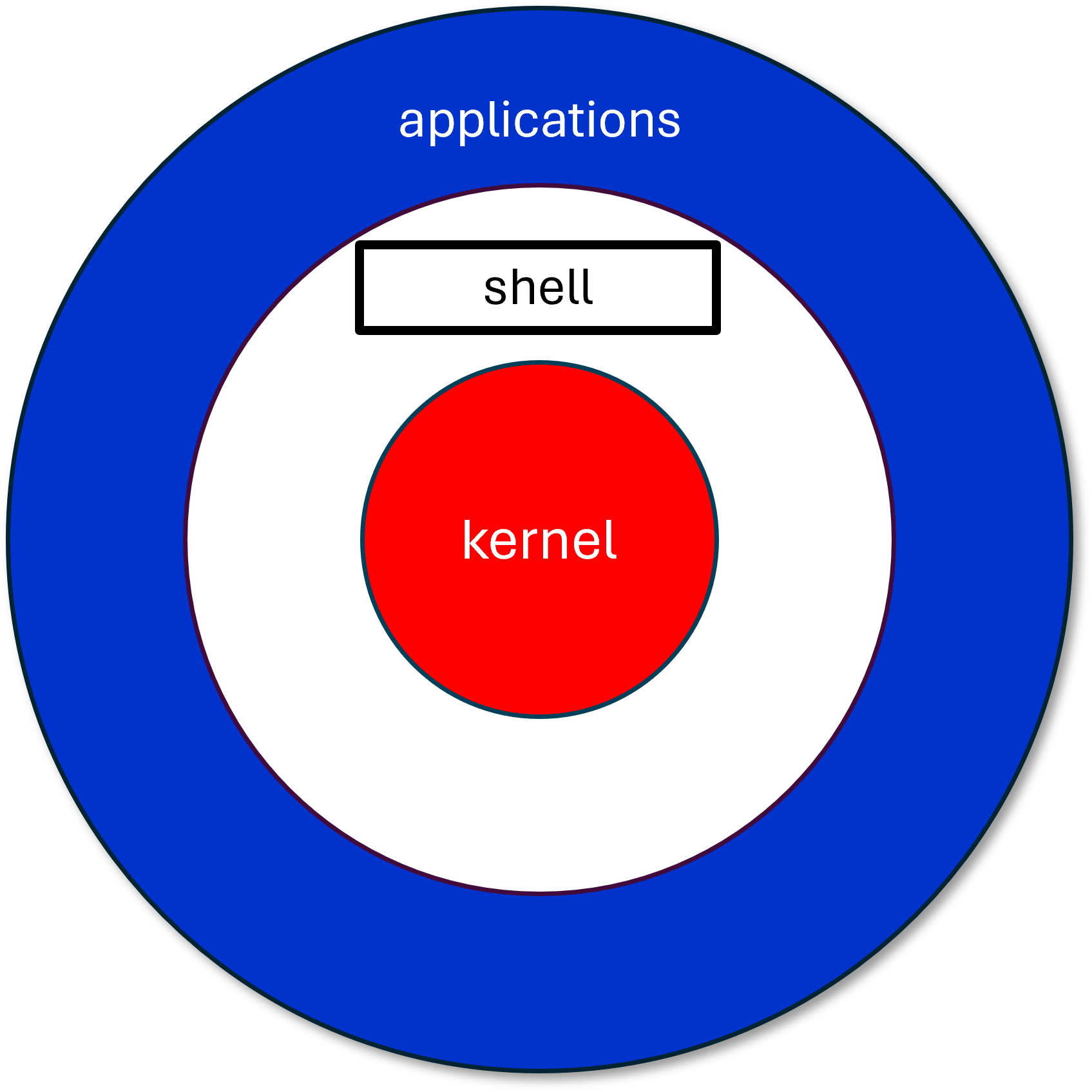
Once there, you are in a shell session and thus into UNIX.
The $ is the UNIX prompt.
The bash $ may be a Linux prompt.
But both will do the same things.
What does this mean? Where exactly are we? Are there any clues?
We are in our root directory,
which is subordinate to Opal's home directory.
- fs1∕
- home∕
- your_onyen∕
- someone_else's_onyen∕
-
In UNIX file system parlance there are directories
similar to the folders
that you may be used to using on Mac or Windows systems.
-
Whenever you see a name followed by a /,
you know it is a directory/
-
These directories exist in a hierarchical structure where your root
directory (which will be named with your_onyen) is the
"root" or top level of your files and directories.
Some general tips on logging into and working on remote computers
- Your mouse won't do much. You can't click things to make them happen.
- You can, however, copy and paste between applications.
- You can scroll up and down in your SSH window to see what you did previously.
-
You can switch between your login window and other windows, or set them up so you can see multiple windows.
This is very useful when editing a Web page while logged in, and viewing it in a Web browser in another window.
Working within UNIX
This would be a good time to get used to a convention.
| UNIX/LINUX ⇒ |
command |
argument |
value |
commandargumentvalue
If you want a reference sheet for Unix/Linux commands,
you may save and use this one.
Working with Unix/Linux at the command line requires us to know certain exact commands.
But we also want to become comfortable with the fact that
-
some commands
-
require an argument
to effectively carry out the command
And, sometimes
-
the argument will include a specific value
-
that must be appended to the argument
-
in order to carry out the command
We will want to get used to this syntax as it will be a common theme in all the tools we will encounter.
Do some navigating
As you move around among your files and directories, you may become disoriented as to "where" you are.
UNIX has the concept of "current" directory, also known as the working directory, or the directory you are
currently "in". Two additional commands will be useful to determine what directory you are in.
to find yourself, use the
pwd - the print working directory command
pwd doesn't take any arguments
to move between directories, use the
cd - the change directory command
cd takes the destination directory as its single argument.
cd steps down in the heirarchy, it changes to a directory below it in the file structure.
The argument is a directory at one level lower than the place where the command was placed.
Try this: cdpublic_html
then
ls
or
pwd
Do you see that you changed to a new directory?
Type cd to return home.
More on ls (that's "ell ess", not "one ess"):
ls -l gives a long directory listing, including the file size, creation date, and access permissions
ls -s gives the size (in blocks) of a file
ls -a shows all files.
Otherwise, files starting with a dot ( . ) are skipped.
Your current directory is always abbreviated as . ,
and the parent directory is always abbreviated as ..
You can put more than one argument on the ls command,
as in ls -als
rm is forever!
Be careful with it.
UNIX file literacy
These are commands commonly used. You will find them valuable when you work within a UNIX system,
and for other UNIX tasks as well. Remember: UNIX is case-sensitive
Commands can have
arguments or
options
and sometimes also values.
Options usually have a hyphen.
Most common errors in UNIX come from not knowing what directory you are in.
Use the pwd and ls
commands to keep track.
Use the man command to get usage information